

Blog
Learn Wiring and Coding of 5-Way Navigation Button in 3 Minutes
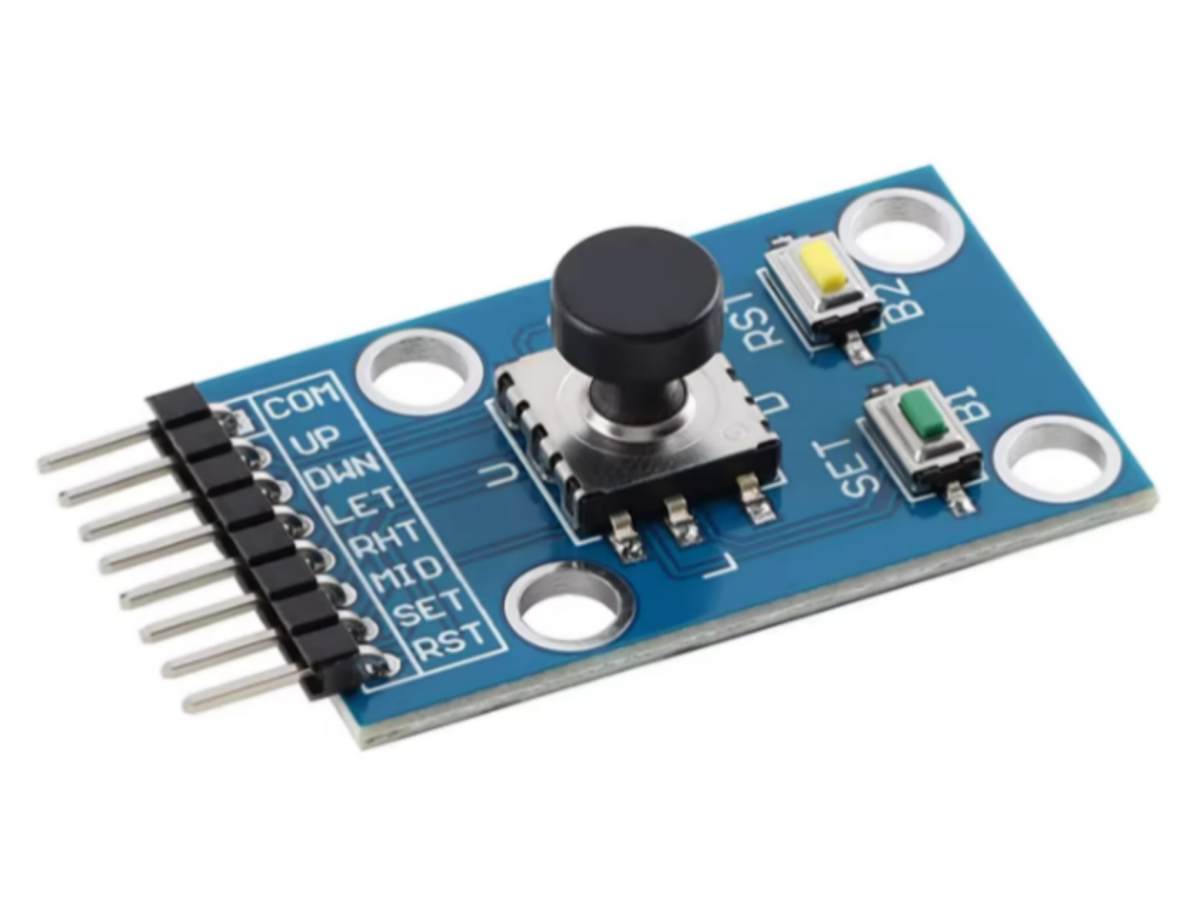
Want to create your own personalized devices? The 5-way navigation button module, 5D Joystick and independent keyboard switches are indispensable helpers. Whether it’s a game controller or a smart home device, they make the DIY process full of fun and challenges. This article will take you deep into the 5-way Navigation Key Module, allowing you to get started easily and become a DIY expert!
The 5-way navigation button module can be said to be a “little elf” in the DIY world. It usually consists of a central key and four direction keys, enabling up, down, left, right, and confirmation functions. Although it is a small module, it can play a big role in many scenarios.
What is navigation button?What is 5-way navigation button?
Navigation buttons are a type of interactive control used to guide users in directional or hierarchical movement within interfaces (such as software, webpages, and device systems). Their core function is to help users quickly switch pages, return to the previous level, enter the next level, or adjust the view position.
A 5-way navigation button, which is the internal structure of the joystick we commonly see, has five key values (up, down, left, right, and the middle). The 5 way navigation button module can be connected to devices such as Arduino, microcontrollers, and Raspberry Pi. This module is equivalent to 7 independent key switches, with one end of each of the 7 switches connected to the common terminal COM.
5-Way Navigation Button Working Principle
The biggest difference of a 5-way switch lies in its five contact points. When the device needs to form a circuit path, the contact reeds can be directly connected to the common contact. The movable contact reeds can be linked together, and under the control of the operating lever, a single movable contact reed can be directly connected to its corresponding fixed contact.
- When no key is pressed
When no key is pressed, each functional pin (UP, DOWN, LEFT, RIGHT, MID) is in an open state relative to the COM pin. At this time, the level of these pins is determined by external pull-up or pull-down resistors. It is common to connect an external pull-up resistor to the positive power supply, so these pins are at a high level when no key is pressed.
- When a key is pressed
When a certain direction of the 5-way navigation key is pressed, the metal dome structure inside the key will connect the corresponding direction pin to the COM pin through conductive rubber or metal contacts.
For example:
When the “Up” direction is pressed, the UP pin is connected to the COM pin. If an external pull-up resistor is connected from the UP pin to VCC in the external circuit, the UP pin will be pulled to a low level after connection (since COM is usually grounded or connected to ground through a pull-down resistor). An external control device (such as a microcontroller) can determine that the user has pressed the “Up” direction key by detecting the level of the UP pin changing from high to low.
Similarly, when the “Down”, “Left”, “Right”, or “Middle” direction is pressed, the corresponding DOWN, LEFT, RIGHT, and MID pins are respectively connected to the COM pin, causing the level of the corresponding pin to change. After detecting the level change, the external device recognizes the corresponding key operation.
- SET and RST pinsoperation mechanism
① SET pin: When the SET pin is pulled to a specific level and held for a certain period of time, the module may enter the setting mode. In this mode, pressing other direction keys can set the parameters of the module. After the setting is completed, operating the SET pin again or waiting for a period of time, the module will save the settings and exit the setting mode.
② RST pin: When the RST pin is pulled to the trigger level, the internal programs and parameters of the module will be reset to the factory default settings, which is equivalent to reinitializing the module and returning it to the initial working state.

5-Way Navigation Button Feature
| Key Direction | Front, Back, Left, Right, Vertical Down |
|---|---|
| Input Voltage | 3.3V-5V |
| Output | Digital level (Low level when pressed, High level when released) |
| Platform | Arduino, Microcontroller, ARM, Raspberry Pi |
- COM can be connected to VCC and GND, and its interrupt mode will vary depending on the wiring.
1. If COM is connected to VCC, the interrupt mode is rising-edge trigger mode.
2. If COM is connected to GND, the interrupt mode is falling-edge trigger mode.
5-Way Navigation Button Pin Function
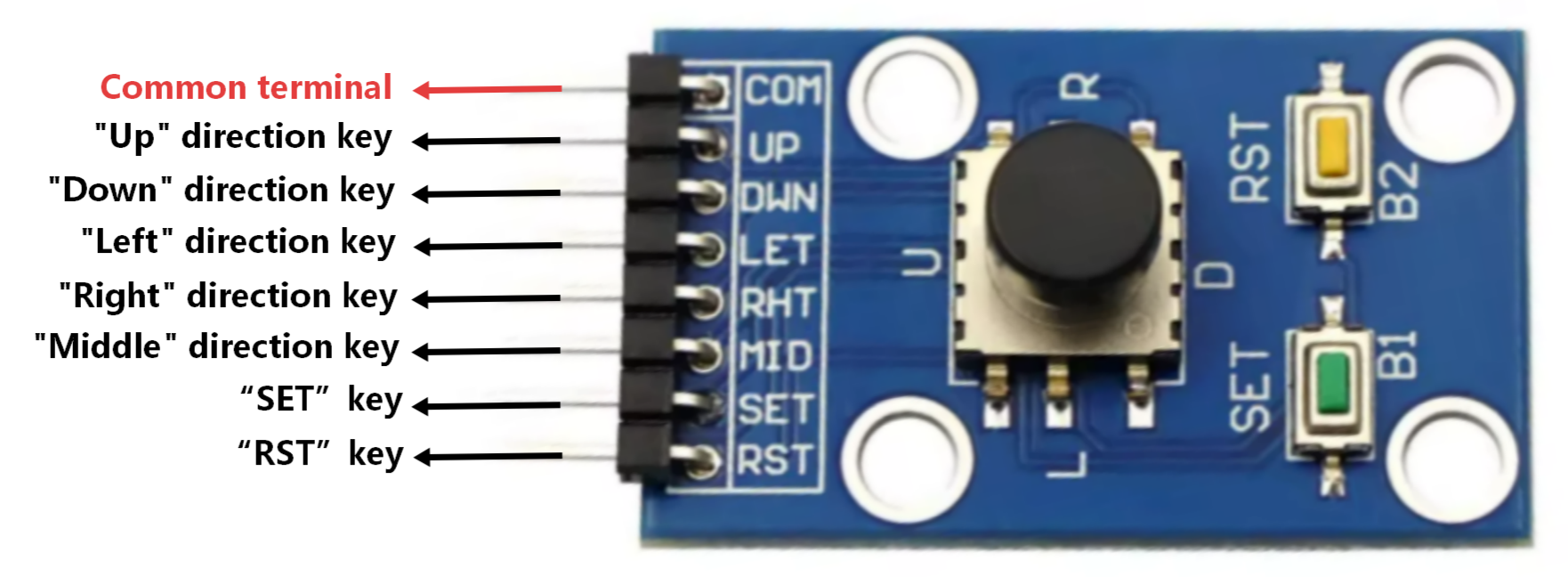
| Pin | Function | Description |
|---|---|---|
| COM | Common terminal | Connect to the VCC or GND of the microcontroller |
| UP | “Up” direction key | Connect to the I/O pin of the microcontroller |
| DWN | “Down” direction key | Connect to the I/O pin of the microcontroller |
| LFT | “Left” direction key | Connect to the I/O pin of the microcontroller |
| RHT | “Right” direction key | Connect to the I/O pin of the microcontroller |
| MID | “Middle” direction key | Connect to the I/O pin of the microcontroller |
| SET | “SET” key | Connect to the I/O pin of the microcontroller |
| RST | “RST” key | Connect to the I/O pin of the microcontroller |
5-Way Navigation Button Wiring Instruction
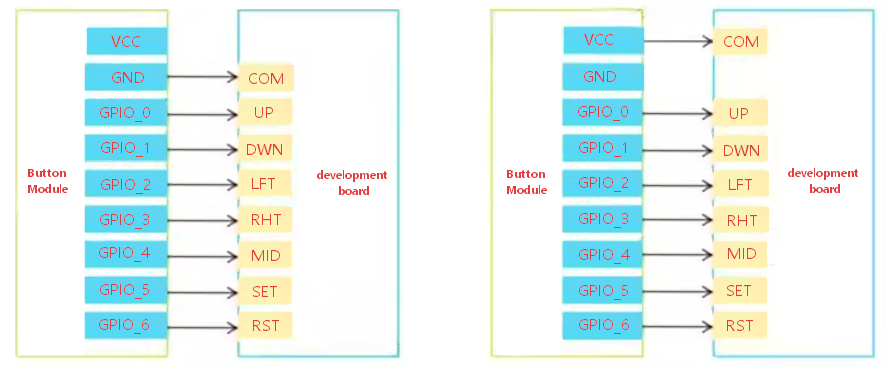
5-Way Navigation Button Arduino
5-Way Navigation Button Pinout
| 5-Way Navigation Button | Arduino |
|---|---|
| COM | GND |
| UP | 2 |
| DWM | 3 |
| LFT | 4 |
| RHT | 5 |
| MID | 6 |
| SET | 7 |
| RST | 8 |
| OLED | Arduino |
| VCC | 3.3V |
| GND | GND |
| SDA | A4 |
| SCL | A5 |
5-Way Navigation Button Code
					#include <Wire.h>
#include <Adafruit_GFX.h>
#include <Adafruit_SSD1306.h>

// OLED Screen Configuration (ZJY_M2420: 128x32)
#define SCREEN_WIDTH 128
#define SCREEN_HEIGHT 32
#define OLED_RESET -1
#define SCREEN_ADDRESS 0x3C // Change to 0x3D if not displaying
Adafruit_SSD1306 display(SCREEN_WIDTH, SCREEN_HEIGHT, &Wire, OLED_RESET);

// 5-Way Key Pin Definitions
#define KEY_UP     2
#define KEY_DOWN   3
#define KEY_LEFT   4
#define KEY_RIGHT  5
#define KEY_SET    7
#define KEY_RST    8

// Game Constants (Optimized for Memory & Slow Speed)
#define GRID_SIZE 4
#define GRID_WIDTH (SCREEN_WIDTH / GRID_SIZE)
#define GRID_HEIGHT (SCREEN_HEIGHT / GRID_SIZE)
#define GAME_SPEED_INIT 500  // Slow initial speed (500ms, bigger = slower)
#define MAX_SNAKE_LENGTH 30
#define MAX_SPEED 200        // Slow max speed (200ms, not too fast)
#define SPEED_UP_STEP 2      // Small speed up step (slow difficulty increase)

// Game State Enumeration
enum GameState {
  GAME_READY,
  GAME_PLAYING,
  GAME_PAUSED,
  GAME_OVER
};
GameState currentState = GAME_READY;

// Snake Direction Enumeration
enum Direction {
  DIR_UP,
  DIR_DOWN,
  DIR_LEFT,
  DIR_RIGHT
};

// Snake Structure (Optimized)
struct SnakeSegment {
  uint8_t x;
  uint8_t y;
};
SnakeSegment snake[MAX_SNAKE_LENGTH];
uint8_t snakeLength = 3;
Direction currentDir = DIR_RIGHT;
Direction nextDir = DIR_RIGHT;

// Food Variables
uint8_t foodX, foodY;
uint8_t score = 0;
unsigned long gameTimer = 0;
uint16_t gameSpeed = GAME_SPEED_INIT;

// Key Debounce Variables
unsigned long lastKeyCheck = 0;
const unsigned long debounceDelay = 200;

// Initialize Game
void setup() {
  // Disable Serial Debug (Save memory)
  // Serial.begin(9600);

  // Initialize Key Pins
  pinMode(KEY_UP, INPUT_PULLUP);
  pinMode(KEY_DOWN, INPUT_PULLUP);
  pinMode(KEY_LEFT, INPUT_PULLUP);
  pinMode(KEY_RIGHT, INPUT_PULLUP);
  pinMode(KEY_SET, INPUT_PULLUP);
  pinMode(KEY_RST, INPUT_PULLUP);

  // Initialize OLED
  if (!display.begin(SSD1306_SWITCHCAPVCC, SCREEN_ADDRESS)) {
    for (;;);
  }

  // Global smallest font
  display.setTextColor(SSD1306_WHITE);
  display.setTextSize(1);
  drawWelcomeScreen();
}

// Main Game Loop
void loop() {
  // Key Scan
  char pressedKey = '\0';
  if (millis() - lastKeyCheck >= debounceDelay) {
    pressedKey = scanKeys();
    lastKeyCheck = millis();
  }

  // Handle Game States
  switch (currentState) {
    case GAME_READY:
      handleReadyState(pressedKey);
      break;
    case GAME_PLAYING:
      handlePlayingState(pressedKey);
      break;
    case GAME_PAUSED:
      handlePausedState(pressedKey);
      break;
    case GAME_OVER:
      handleGameOverState(pressedKey);
      break;
  }
}

// Scan Pressed Key
char scanKeys() {
  if (digitalRead(KEY_UP) == LOW) return 'U';
  if (digitalRead(KEY_DOWN) == LOW) return 'D';
  if (digitalRead(KEY_LEFT) == LOW) return 'L';
  if (digitalRead(KEY_RIGHT) == LOW) return 'R';
  if (digitalRead(KEY_SET) == LOW) return 'S';
  if (digitalRead(KEY_RST) == LOW) return 'T';
  return '\0';
}

// Handle Ready State
void handleReadyState(char pressedKey) {
  if (pressedKey == 'S') {
    initGame();
    currentState = GAME_PLAYING;
    gameTimer = millis();
  }
}

// Handle Playing State
void handlePlayingState(char pressedKey) {
  handleKeyInput(pressedKey);

  if (millis() - gameTimer >= gameSpeed) {
    updateDirection();
    moveSnake();

    if (checkCollision()) {
      currentState = GAME_OVER;
      drawGameOverScreen();
      return;
    }

    if (snake[0].x == foodX && snake[0].y == foodY) {
      eatFood();
    }

    drawGameScreen();
    gameTimer = millis();
  }
}

// Handle Paused State
void handlePausedState(char pressedKey) {
  if (pressedKey == 'S') {
    currentState = GAME_PLAYING;
    gameTimer = millis();
    drawGameScreen();
  } else if (pressedKey == 'T') {
    currentState = GAME_READY;
    drawWelcomeScreen();
  }
}

// Handle Game Over State
void handleGameOverState(char pressedKey) {
  if (pressedKey == 'T') {
    currentState = GAME_READY;
    drawWelcomeScreen();
  }
}

// Initialize Game Parameters
void initGame() {
  // Reset Snake
  snakeLength = 3;
  currentDir = DIR_RIGHT;
  nextDir = DIR_RIGHT;
  snake[0].x = 5; snake[0].y = GRID_HEIGHT / 2;
  snake[1].x = 4; snake[1].y = GRID_HEIGHT / 2;
  snake[2].x = 3; snake[2].y = GRID_HEIGHT / 2;

  // Spawn Food
  spawnFood();

  // Reset Score and Slow Speed
  score = 0;
  gameSpeed = GAME_SPEED_INIT;

  drawGameScreen();
}

// Handle Key Input
void handleKeyInput(char pressedKey) {
  if (pressedKey == 'S') {
    if (currentState == GAME_PLAYING) {
      currentState = GAME_PAUSED;
      drawPausedScreen();
    }
    return;
  }

  // Direction Control
  if (pressedKey == 'U' && currentDir != DIR_DOWN) {
    nextDir = DIR_UP;
  } else if (pressedKey == 'D' && currentDir != DIR_UP) {
    nextDir = DIR_DOWN;
  } else if (pressedKey == 'L' && currentDir != DIR_RIGHT) {
    nextDir = DIR_LEFT;
  } else if (pressedKey == 'R' && currentDir != DIR_LEFT) {
    nextDir = DIR_RIGHT;
  }
}

// Update Direction
void updateDirection() {
  currentDir = nextDir;
}

// Move Snake
void moveSnake() {
  uint8_t prevX = snake[0].x;
  uint8_t prevY = snake[0].y;

  // Update Head
  switch (currentDir) {
    case DIR_UP:
      snake[0].y--;
      break;
    case DIR_DOWN:
      snake[0].y++;
      break;
    case DIR_LEFT:
      snake[0].x--;
      break;
    case DIR_RIGHT:
      snake[0].x++;
      break;
  }

  // Update Body
  for (uint8_t i = 1; i < snakeLength; i++) {
    uint8_t tempX = snake[i].x;
    uint8_t tempY = snake[i].y;
    snake[i].x = prevX;
    snake[i].y = prevY;
    prevX = tempX;
    prevY = tempY;
  }
}

// Check Collision
bool checkCollision() {
  // Wall Collision
  if (snake[0].x >= GRID_WIDTH || snake[0].y >= GRID_HEIGHT) {
    return true;
  }

  // Self Collision
  for (uint8_t i = 1; i < snakeLength; i++) {
    if (snake[0].x == snake[i].x && snake[0].y == snake[i].y) {
      return true;
    }
  }

  return false;
}

// Spawn Food
void spawnFood() {
  bool foodOnSnake;
  do {
    foodOnSnake = false;
    foodX = random(GRID_WIDTH);
    foodY = random(GRID_HEIGHT);

    for (uint8_t i = 0; i < snakeLength; i++) {
      if (snake[i].x == foodX && snake[i].y == foodY) {
        foodOnSnake = true;
        break;
      }
    }
  } while (foodOnSnake);
}

// Eat Food (Slow Speed Up)
void eatFood() {
  // Grow Snake
  if (snakeLength < MAX_SNAKE_LENGTH) {
    snake[snakeLength].x = snake[snakeLength - 1].x;
    snake[snakeLength].y = snake[snakeLength - 1].y;
    snakeLength++;
  }

  // Update Score
  score += 10;

  // Slow Speed Up (Only if faster than max slow speed)
  if (gameSpeed > MAX_SPEED) {
    gameSpeed -= SPEED_UP_STEP;
  }

  spawnFood();
}

// Draw Welcome Screen
void drawWelcomeScreen() {
  display.clearDisplay();

  display.setCursor(40, 8);
  display.print(F("Snake Game"));

  display.setCursor(15, 18);
  display.print(F("SET: Start/Pause"));
  display.setCursor(15, 28);
  display.print(F("RST: Reset Game"));

  display.display();
}

// Draw Game Screen
void drawGameScreen() {
  display.clearDisplay();

  // Draw Snake
  for (uint8_t i = 0; i < snakeLength; i++) {
    display.fillRect(snake[i].x * GRID_SIZE, snake[i].y * GRID_SIZE,
                     GRID_SIZE - 1, GRID_SIZE - 1, SSD1306_WHITE);
  }

  // Draw Food
  display.fillRect(foodX * GRID_SIZE, foodY * GRID_SIZE,
                   GRID_SIZE - 1, GRID_SIZE - 1, SSD1306_WHITE);

  // Draw Score
  display.setCursor(0, 0);
  display.print(F("Score: "));
  display.print(score);

  display.display();
}

// Draw Paused Screen
void drawPausedScreen() {
  display.clearDisplay();

  display.setCursor(50, 12);
  display.print(F("PAUSED"));

  display.setCursor(35, 22);
  display.print(F("SET to resume"));

  display.display();
}

// Draw Game Over Screen
void drawGameOverScreen() {
  display.clearDisplay();

  display.setCursor(45, 10);
  display.print(F("GAME OVER"));

  display.setCursor(35, 20);
  display.print(F("Final Score: "));
  display.print(score);

  display.display();
}
5-Way Navigation Button Effect Demonstration
5-Way Navigation Button Application
1. Embedded development, DIY robot movement/mode switching
2. TV remote control
3. Game console direction control
4. Smart wearable devices
Purchase Link
FAQ
Why is my 5-way navigation button not responding correctly?
There are several possible reasons :
- Loose wiring
Check whether the module’s pins (COM, UP, DOWN, etc.) are securely connected to the controller. Poor contact will cause detection failure.
- Power supply issues
Ensure that the supply voltage meets the module specifications (usually 3.3 V or 5 V) and that the power supply is stable.
- Signal interference or noise
Electrical noise may cause misreading; hardware debouncing can be achieved by adding pull-up/pull-down resistors or capacitors.
- Software logic errors
If using a microcontroller, confirm that the input pin configuration is correct (e.g., INPUT_PULLUP) and that the reading/debouncing code is functioning properly.
- Mechanical aging of keys
Wear or contamination of the internal structure of the keys can lead to poor contact, requiring cleaning or replacement of the keys.
Is a 5-way navigation button better than a joystick or touchpad for embedded projects?
It depends on application requirements:
- 5-way button
Simple, low-cost, and reliable discrete direction selection, suitable for menu navigation and limited motion control.
- Joystick
Provides analog or continuous direction input, more suitable for variable speed or angle control (such as robot steering).
- Touchpad
Supports multi-touch and large-area interaction, but requires more complex drivers and processing.