

Blog
A Hands-On Guide to Displaying Images with an ESP8266 and a Full-Color TFT Display

In this tutorial, we will be using an ESP8266 NodeMCU development board and a 1.54-inch TFT screen with a 240x240 resolution (Pins: GND, VCC, SCL, SDA, RES, DC, CS, BLK). If you are using a display with a different resolution, you can adapt it later by simply adjusting the code. The code will be written and uploaded using the Arduino IDE.

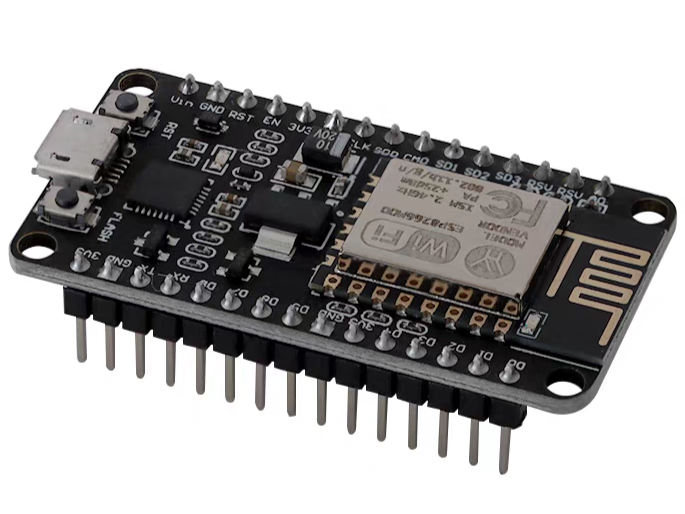
Hardware Connections
Refer to the table below for the wiring connections.
Recommendation: For your first attempt, please follow these instructions exactly. Once you have successfully set it up, you can then modify the configuration. This will help you avoid potential issues that are difficult to troubleshoot later.
| SCREEN PIN | FUNCTION | CONNECT TO ESP8266 (RECOMMENDED) |
|---|---|---|
| GND | Ground | G (GND) |
| VCC | Power | 3V3 |
| SCL | SPI Clock | D5 (GPIO14) |
| SDA | SPI Data (MOSI) | D7 (GPIO13) |
| RES | Reset | D0 (GPIO16) or connect to RST pin |
| DC | Data/Command Select | D2 (GPIO4) |
| CS | Chip Select | D1 (GPIO5) |
| BLK/LED | Backlight | Connect to 3V3 (simple) or D6 (GPIO12) for brightness control |
When modifying the pin configuration, it is highly recommended not to change the SCL and SDA pins.
Reason: Pins D5 and D7 on the ESP8266 are the dedicated hardware SPI pins (SCLK and MOSI). Using these specific pins ensures that the communication with your display is both fast and stable.
Setting up the Arduino IDE for ESP8266 Development
1. Install the Arduino IDE
You can search for "Arduino IDE" in your web browser and install the latest version. It is completely free.


- Open the Arduino IDE and navigate to File > Preferences. In the "Additional boards manager URLs" field, paste the following:https://arduino.esp8266.com/stable/package_esp8266com_index.json

- In the Boards Manager, search for
ESP8266and install the package named 'ESP8266 by ESP8266 Community'.

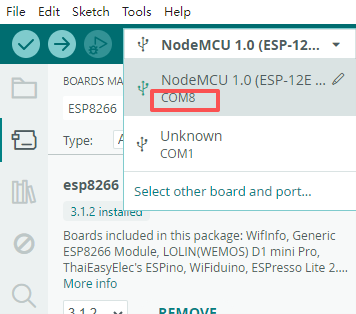
- Go to Tools > Board and select NodeMCU 1.0 (ESP-12E Module).

5. Select the correct port.
Installing Required Libraries
Search for and install the following libraries in the Library Manager:
- Adafruit GFX Library
- Adafruit ST7789 Library
Note: If you are prompted to install dependencies, simply click 'OK'. The IDE will automatically install all the required libraries for you.

Verify that the display is working correctly
I'm going to give you a piece of code that demonstrates three cool things:
- First, it initializes the display, clears it, and writes some text.
- Second, it draws some basic shapes like lines and circles.
- And third, it displays a "picture"—which is actually a beautiful color gradient generated by the code itself!
Go ahead and copy this code into your Arduino IDE, upload it to your ESP8266, and let's see if your display works perfectly!
					/*
 * ESP8266 + 1.54" 240x240 TFT (ST7789) ultra-detailed starter example
 * Libraries: Adafruit GFX, Adafruit ST7789
 * Wiring (recommended):
 *   TFT_SCLK -> D5 (GPIO14)
 *   TFT_MOSI -> D7 (GPIO13)
 *   TFT_CS   -> D1 (GPIO5)
 *   TFT_DC   -> D2 (GPIO4)
 *   TFT_RST  -> D0 (GPIO16)  (or connect to board RST and set TFT_RST to -1)
 *   BLK/LED  -> 3V3 (or to D6 for brightness control)
 */

#include <Arduino.h>
#include <SPI.h>
#include <Adafruit_GFX.h>
#include <Adafruit_ST7789.h>

// ----------- Modify to match your wiring -----------
#define TFT_CS   D1   // GPIO5
#define TFT_DC   D2   // GPIO4
#define TFT_RST  D0   // GPIO16; if your screen's RES is tied to the board RST, set this to -1
// Optional backlight PWM pin (if BLK is tied to D6): comment the two lines below out if unused
//#define TFT_BLK  D6   // GPIO12
//#define USE_BL_PWM
// --------------------------------------------------

// Use hardware SPI: SCLK=D5 (GPIO14), MOSI=D7 (GPIO13)
Adafruit_ST7789 tft = Adafruit_ST7789(TFT_CS, TFT_DC, TFT_RST);

void drawGradientDemo();    // Decl: demo of "full-screen image" (color gradient)
void drawShapesDemo();      // Decl: geometric shapes demo

void setup() {
  Serial.begin(115200);
  delay(100);

#ifdef USE_BL_PWM
  pinMode(TFT_BLK, OUTPUT);
  analogWriteRange(1023);   // ESP8266 PWM 0~1023
  analogWriteFreq(1000);    // 1 kHz to avoid visible flicker
  analogWrite(TFT_BLK, 900); // Backlight level (0~1023), higher = brighter
#endif

  // Initialize ST7789: resolution 240x240, no offset
  tft.init(240, 240);
  tft.setRotation(2); // 0~3; try and choose; 2 is usually upright when the USB port is on the right/top
  tft.fillScreen(ST77XX_BLACK);

  // Boot text
  tft.setTextWrap(true);
  tft.setTextSize(2);
  tft.setTextColor(ST77XX_WHITE);
  tft.setCursor(10, 10);
  tft.println(F("ESP8266 + ST7789"));
  tft.setTextSize(1);
  tft.setCursor(10, 35);
  tft.println(F("Hello! Screen OK if you see this."));

  delay(1200);

  drawShapesDemo();     // Draw lines, circles, rectangles, etc.
  delay(1200);

  drawGradientDemo();   // "Show a full-screen picture" (color gradient)
  // Reaching here means: driver/wiring/libraries are all OK!
}

void loop() {
  // Do nothing in loop; screen stays as-is
}

void drawShapesDemo() {
  tft.fillScreen(ST77XX_BLACK);

  // Color stripes
  uint16_t colors[] = {
    ST77XX_RED, ST77XX_ORANGE, ST77XX_YELLOW, ST77XX_GREEN,
    ST77XX_CYAN, ST77XX_BLUE, ST77XX_MAGENTA, ST77XX_WHITE
  };
  for (int i = 0; i < 8; i++) {
    tft.fillRect(i * 30, 0, 30, 40, colors[i]);
  }

  // White frames
  tft.drawRect(5, 45, 230, 120, ST77XX_WHITE);
  tft.drawRoundRect(10, 50, 220, 110, 12, ST77XX_CYAN);

  // Circles and line
  tft.fillCircle(60, 100, 20, ST77XX_YELLOW);
  tft.drawCircle(60, 100, 28, ST77XX_WHITE);
  tft.drawLine(10, 200, 230, 200, ST77XX_GREEN);

  // Text
  tft.setTextSize(2);
  tft.setTextColor(ST77XX_WHITE, ST77XX_BLACK);
  tft.setCursor(20, 160);
  tft.println(F("Graphics OK"));

  delay(800);
}

void drawGradientDemo() {
  // Generate and display a 240x240 color gradient (equivalent to showing an "image")
  // Technically uses pushColor to stream pixels; looks smooth and saturated.
  tft.startWrite();
  tft.setAddrWindow(0, 0, 240, 240);
  for (int y = 0; y < 240; y++) {
    for (int x = 0; x < 240; x++) {
      // Compute an RGB565 gradient: R left->right, G top->bottom, B varies along the diagonal
      uint8_t r = (uint8_t)((x * 255) / 239);
      uint8_t g = (uint8_t)((y * 255) / 239);
      uint8_t b = (uint8_t)(((x + y) * 255) / (239 + 239));
      // Convert to RGB565
      uint16_t color = ((r & 0xF8) << 8) | ((g & 0xFC) << 3) | (b >> 3);
      tft.pushColor(color);
    }
  }
  tft.endWrite();

  tft.setTextSize(2);
  tft.setTextColor(ST77XX_WHITE);
  tft.setCursor(10, 10);
  tft.println(F("Full-screen gradient = 'image'"));
}
Display an Image
Preparing the Header File
Create a new text file and name it my_image. Then, copy the code below into it and save the file.
					#pragma once
#include <pgmspace.h>
#define IMG_WIDTH 240
#define IMG_HEIGHT 240
const uint16_t myImage[IMG_WIDTH * IMG_HEIGHT] PROGMEM = {

//Put this in your array


};
Change the file extension to .h

Convert the image to an array
Open the website below.Upload your image. Please note: the image must be square (1:1 aspect ratio) with a resolution of 240x240 pixels.
https://javl.github.io/image2cpp/?utm_source
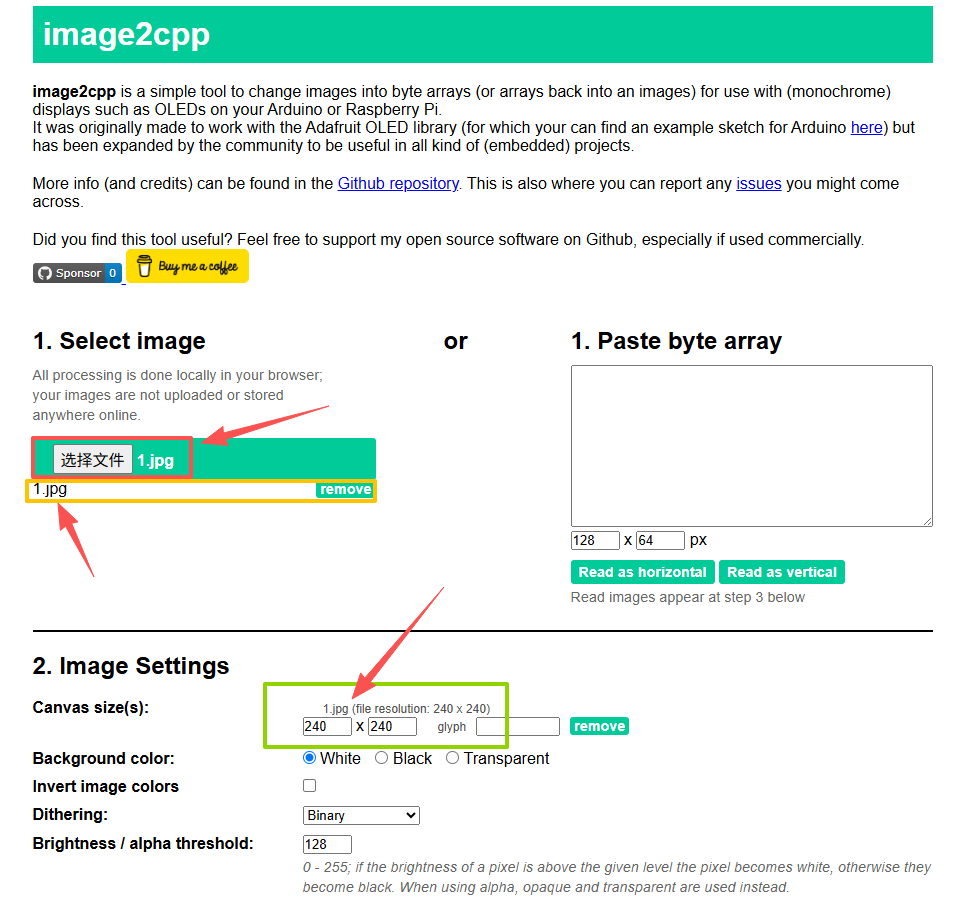
Select "Horizontal - 2 bytes per pixel (565)". Then, check if your image is in color.
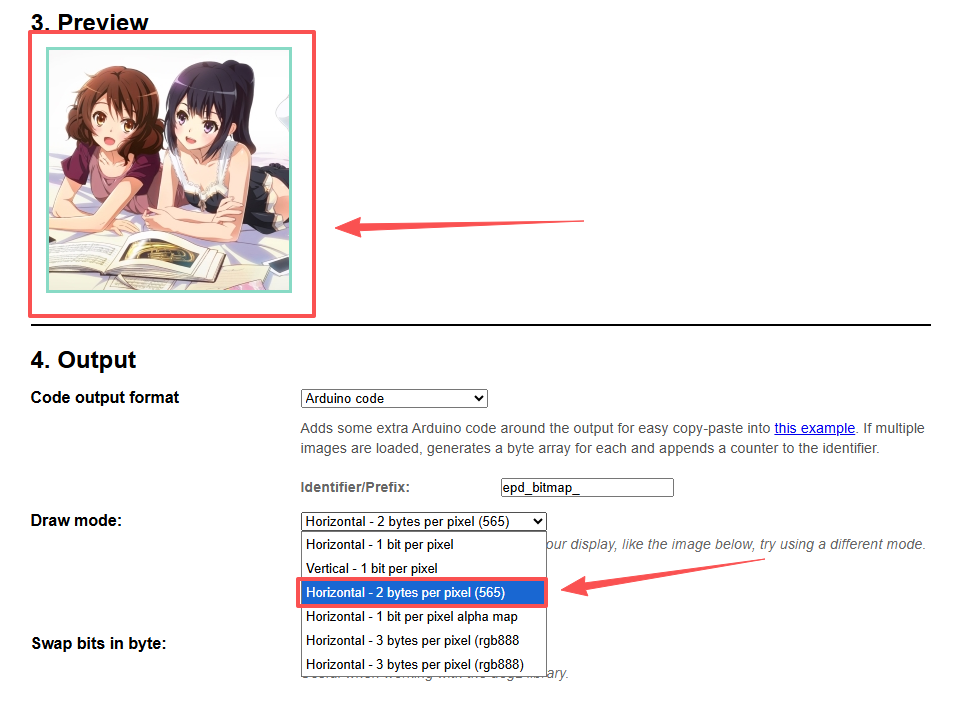
Click the 'Generate code' button

Copy the generated code below

Paste the code you copied into this function(the .h file you prepared earlier). Then, delete the extra parts, keeping only the array.
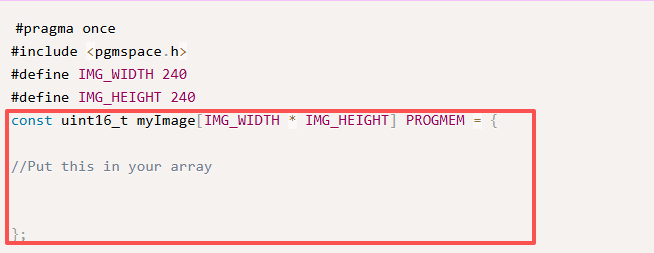
Finally, save the file.
Preparing the Project Files
Create a new project and copy this code into it.
					/*
 * NodeMCU (ESP8266) + ST7789 240x240
 * Display an image directly from an RGB565 array (no filesystem required)
 * - Display libraries: Adafruit GFX, Adafruit ST7735 and ST7789 Library
 * - Place my_image.h in the same folder as this .ino
 * - my_image.h contains:
 *      #define IMG_WIDTH  240
 *      #define IMG_HEIGHT 240
 *      const uint16_t myImage[IMG_WIDTH*IMG_HEIGHT] PROGMEM = {...};
 */

#include <Arduino.h>
#include <SPI.h>
#include <Adafruit_GFX.h>
#include <Adafruit_ST7789.h>
#include "my_image.h"   // <- This is the header you downloaded, already 240x240

// ====== Wiring (recommended safe pins) ======
// SCL -> D5 (GPIO14), SDA/MOSI -> D7 (GPIO13)
#define TFT_CS   D1   // GPIO5
#define TFT_DC   D2   // GPIO4
#define TFT_RST  D0   // GPIO16; if the screen's RES is tied to the board RST, set to -1
// Backlight BLK: first connect to 3V3 for fixed brightness (most stable)
// If you want PWM dimming, connect BLK to D6 through a 220~1K resistor, then:
//   #define TFT_BLK D6
//   #define USE_BL_PWM
// ============================================

Adafruit_ST7789 tft(TFT_CS, TFT_DC, TFT_RST);

// Copy from PROGMEM line-by-line into a RAM line buffer, then draw to the screen (most general & stable)
void drawImageFromProgmemCentered()
{
  // Calculate centered origin
  int x0 = (240 - (int)IMG_WIDTH)  / 2;
  int y0 = (240 - (int)IMG_HEIGHT) / 2;
  if (x0 < 0) x0 = 0;
  if (y0 < 0) y0 = 0;

  // Line buffer (up to 240 pixels)
  static uint16_t lineBuf[240];

  // Read PROGMEM line-by-line and render
  // Note: myImage is a uint16_t array in RGB565 format
  for (int y = 0; y < IMG_HEIGHT; y++) {
    // Copy one line from PROGMEM to RAM
    for (int x = 0; x < IMG_WIDTH && x < 240; x++) {
      // Read from PROGMEM
      uint16_t color = pgm_read_word(&myImage[y * IMG_WIDTH + x]);
      lineBuf[x] = color;
    }
    // Draw this line
    // If the image is smaller than the screen, it will be centered;
    // if larger, only the top-left visible region will be shown.
    int drawW = min(IMG_WIDTH, 240);
    if (y0 + y >= 0 && y0 + y < 240) {
      tft.drawRGBBitmap(x0, y0 + y, lineBuf, drawW, 1);
    }
  }
}

void setup() {
  delay(100);

#ifdef USE_BL_PWM
  pinMode(TFT_BLK, OUTPUT);
  analogWriteRange(1023);
  analogWriteFreq(1000);
  analogWrite(TFT_BLK, 900);  // 0~1023; higher value = brighter
#endif

  // Initialize ST7789 (240x240)
  tft.init(240, 240);
  tft.setRotation(2);  // 0/1/2/3; rotate as needed
  tft.fillScreen(ST77XX_BLACK);

  // Simple status message
  tft.setTextColor(ST77XX_WHITE);
  tft.setTextSize(1);
  tft.setCursor(6, 6);
  tft.print("Drawing image from PROGMEM...");

  // Show the image
  drawImageFromProgmemCentered();

  // Optional: draw a line of text over the image (overlay demo)
  // tft.setTextColor(ST77XX_WHITE);
  // tft.setTextSize(2);
  // tft.setCursor(10, 10);
  // tft.println("Hello");
}

void loop() {
  // Static image; no loop logic needed
}
Click on the "Sketch" menu in the menu bar, then select "Show Sketch Folder".
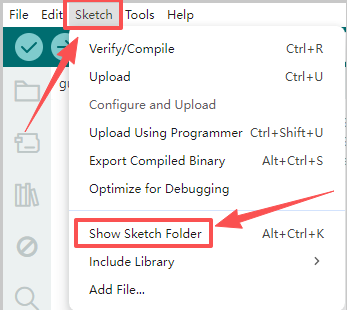
Copy the .h file you prepared earlier into this folder.

Simply compile and upload the code, and the image will be displayed.
