

Blog
A Step-by-Step Raindrop Sensor Project with Real-Time Monitoring
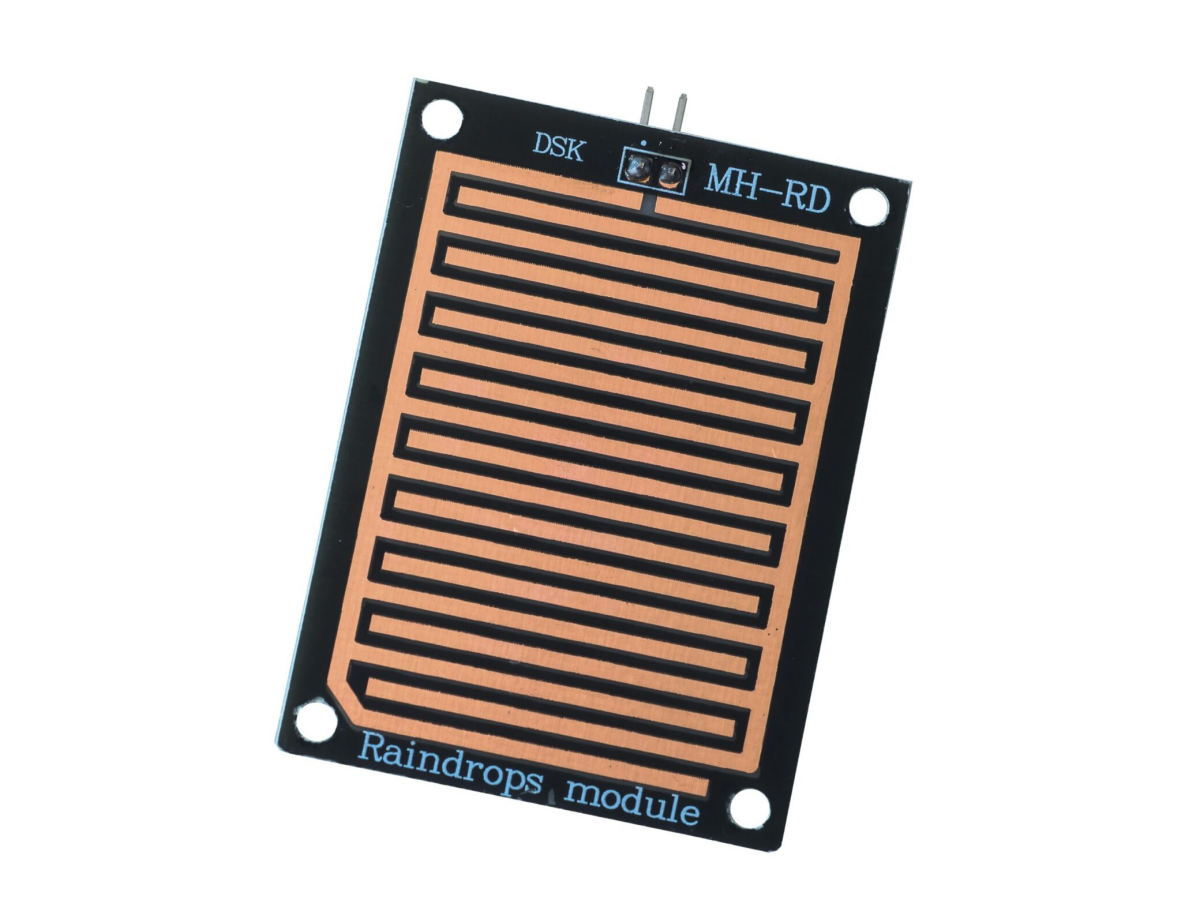
Have you ever encountered this problem? When you hang your clothes outside to dry, you often worry that sudden rain will wet your clothes that are almost dry. To solve this problem, we recommend the MH-RD Raindrops module rain sensor. Below, we will introduce the working principle of the MH-RD Raindrops module, connect it to Arduino to simulate rain to test its functionality, and provide a solution to this problem.
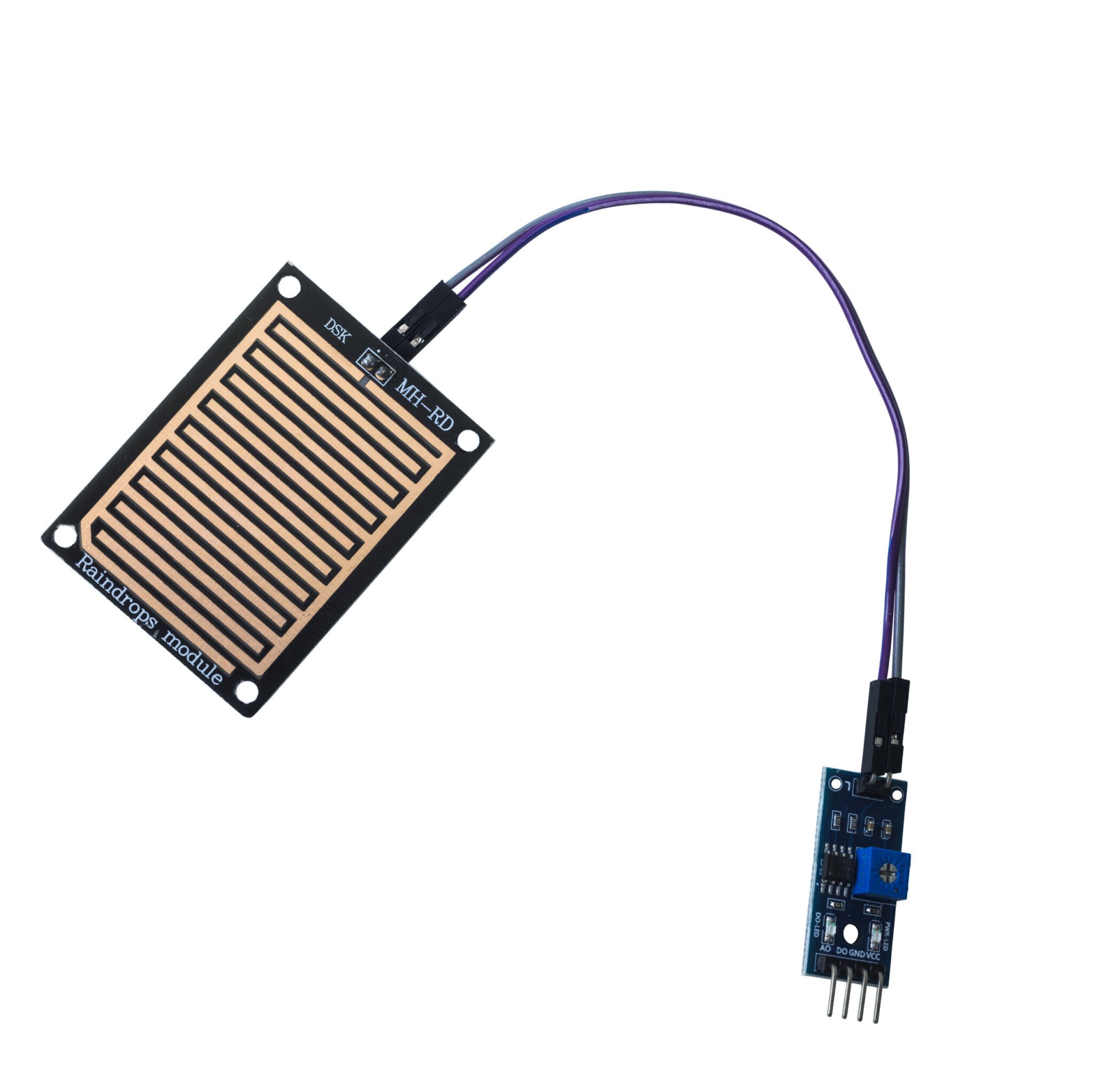
MH-RD Raindrops module
What is Raindrop module?
A raindrop sensor is a sensor used to detect the presence and intensity of rain. It usually consists of a metal plate and a sensor module. The module detects changes in the surface resistance of the metal plate to determine whether rain drops are falling, thereby achieving the perception of rainfall conditions.
What does the raindrop module consist of?
The raindrop module usually consists of two parts: the sensor board (a PCB board with parallel copper wires) and the signal comparator (built-in LM393 chip and potentiometer for adjusting sensitivity).

How does a Raindrops sensor work?
The sensor board part of the MH-RD raindrop module is essentially a PCB board with parallel nickel-plated lines. When it is dry outside with no rain, the resistance of the parallel nickel-plated PCB board is very high, and when current is input, it is at a high voltage. When it starts to rain outside, raindrops fall on the PCB board. Since water is conductive, it will cause the parallel nickel-plated copper wires to be connected in parallel with each other, resulting in a decrease in resistance.At this time, when current is input, a low voltage is obtained.
What are the advantages of MH-RD raindrops sensor?
Working Principle
.png.webp)
.png.webp)
Performance parameters
| MH-RD Raindrops module | |
|---|---|
| Operating voltage | 3.3V-5V |
| Operating current | 15mA |
| Output form | Digital signal DO switch output 0/1, Analog AO output |
| Product size | large: 5.0*4.0cm, small: 3.2*1.4cm |
| Comparator | LM393 |
MH-RD Raindrops module Datasheet
We provide you with recommended data manuals for your reference.
MH-RD Raindrops pinout
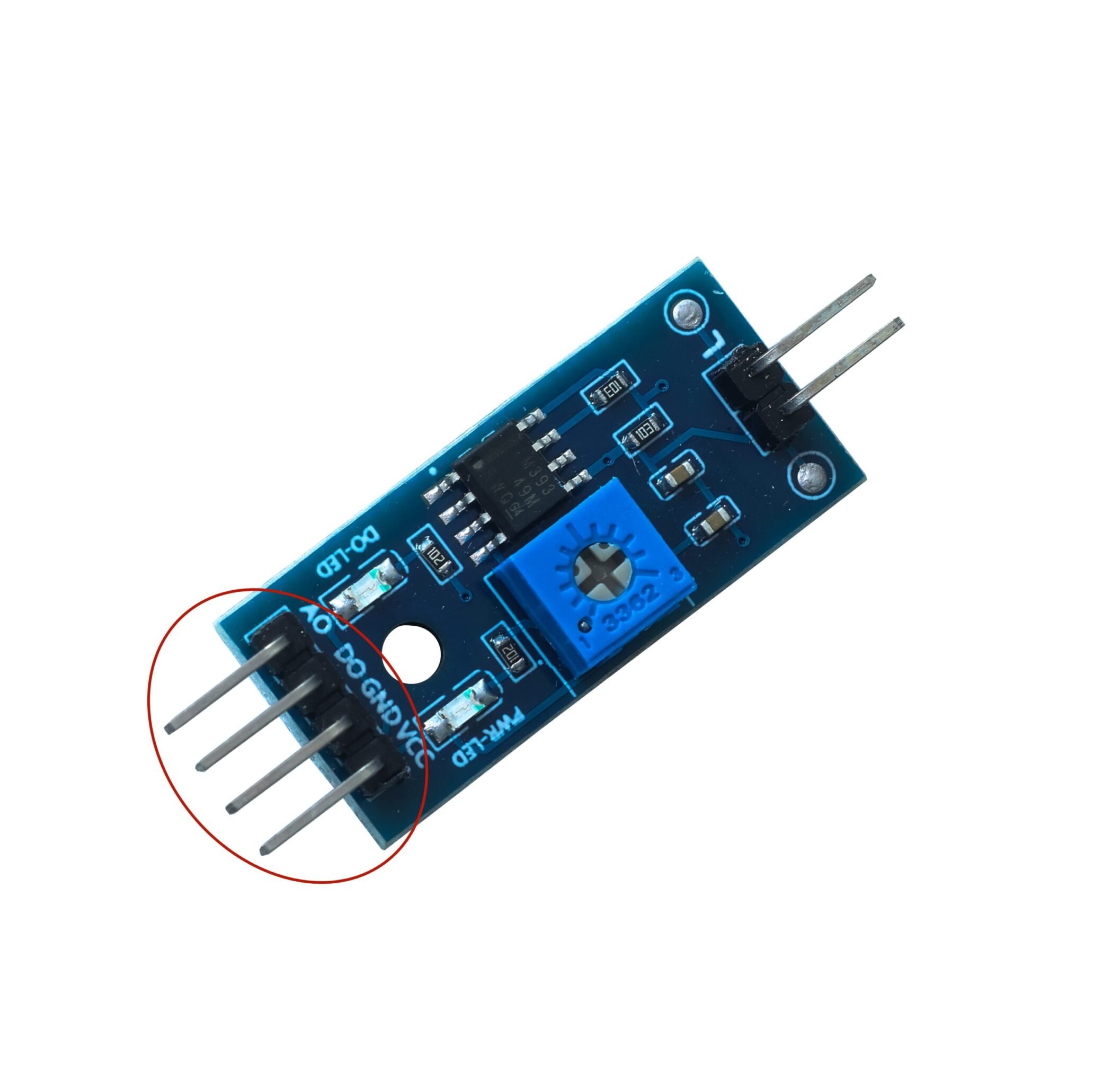
- VCC: Connect to 5V voltage input
- GND: Ground terminal
- D0: Digital signal output pin
- A0: Analog signal output pin
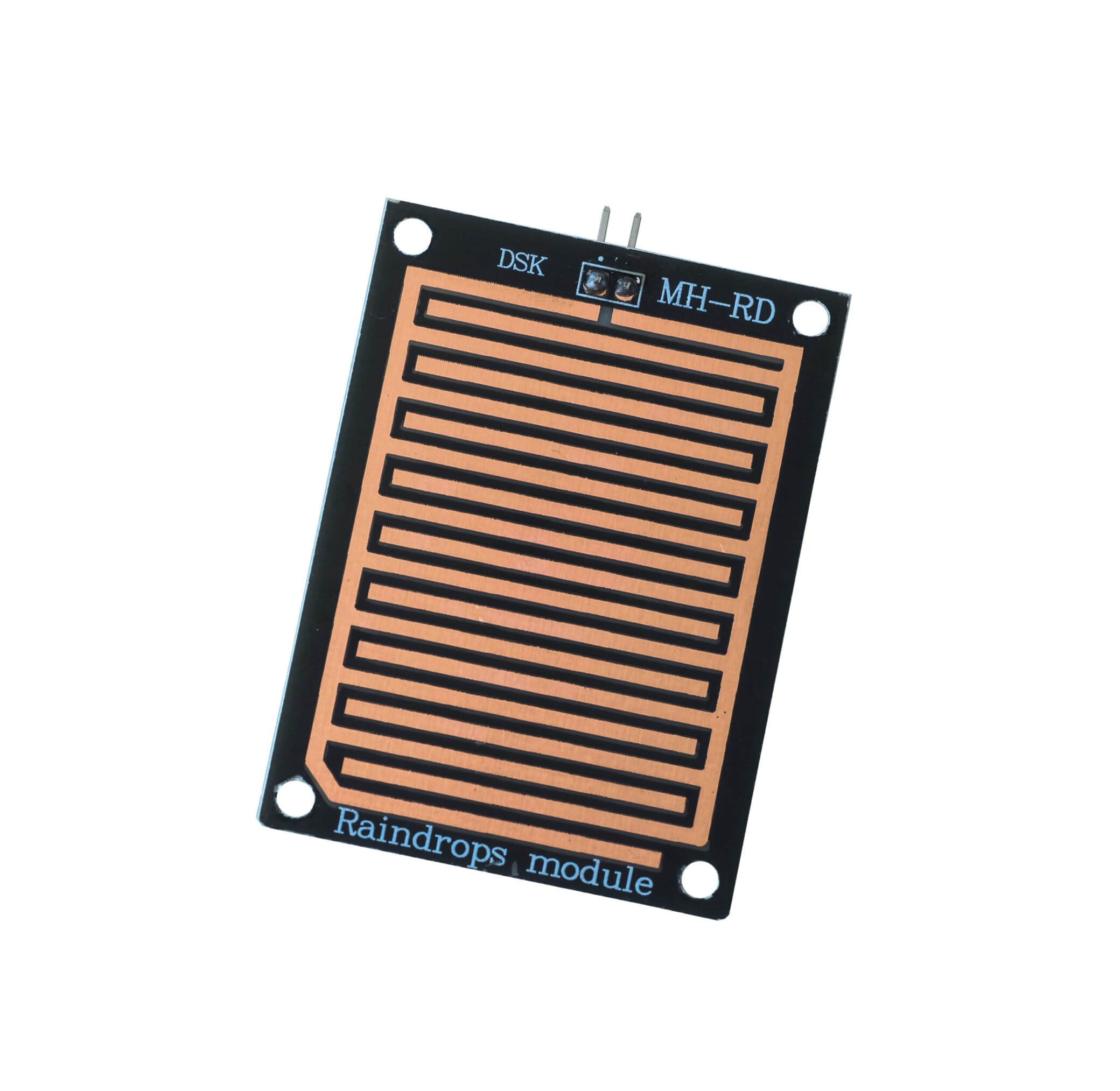
- VCC:Voltage input
- GND:Ground terminal
What are the application scenarios for rain drop sensors?
What is the difference between a rain sensor and a water sensor?
| FEATURE | RAIN SENSOR | WATER SENSOR |
|---|---|---|
| Purpose | detect rainfall | detect water level or water quality |
| Detection Method | Measure through the contact of raindrops with the PCB board (changing conductivity or capacitance) | Measure through water contact (changing conductivity, resistance or using a float switch) |
| Output Type | Digital signal / analog signal | Digital signal / analog signal |
| Placement | Usually placed outdoors | Usually placed indoors (through water immersion of the detection board) |
| Common Uses | Automotive smart wiper systems, garden smart irrigation systems | Smart home protection, dam water level detection |
Raindrops sensor connected to Arduino
Sample code
					#include <Wire.h>
#include <Adafruit_GFX.h>
#include <Adafruit_SSD1306.h>
// Define OLED screen parameters
#define SCREEN_WIDTH 128
#define SCREEN_HEIGHT 64
// Create OLED object
Adafruit_SSD1306 display(SCREEN_WIDTH, SCREEN_HEIGHT, &Wire, -1);
// Pin definition
const int waterLevelPin = A0;
const int buzzerPin = 7;
// Alarm threshold (alarm when the value is below this)
const int alarmThreshold = 300;
//  State judgment thresholds
const int highToMediumThreshold = 600;
const int mediumToLowThreshold = 300;
// Alarm state variable
bool isAlarming = false;
void setup() {
  // Initialize serial port
  Serial.begin(9600);
  // Configure buzzer pin as output and ensure initial state is off
  pinMode(buzzerPin, OUTPUT);
  digitalWrite(buzzerPin, LOW);
  //  Initialize OLED
  if(!display.begin(SSD1306_SWITCHCAPVCC, 0x3C)) {
    Serial.println(F("SSD1306 allocation failed"));
    for(;;);
  }
  // Initial display
  display.clearDisplay();
  display.setTextSize(1);
  display.setTextColor(SSD1306_WHITE);
  display.setCursor(0, 0);
  display.println(F("Water Level Monitor"));
  display.println(F("Ready"));
  display.display();
  delay(2000);
}
void loop() {
    // Note: The smaller the value, the larger the raindrops/higher the water level
  int waterLevel = analogRead(waterLevelPin);
  String waterStatus;
  if (waterLevel < mediumToLowThreshold) {
    waterStatus = "High Level";
  } else if (waterLevel < highToMediumThreshold) {
    waterStatus = "Medium Level";
  } else {
    waterStatus = "Low Level";
  }
  //  Trigger alarm only when water level is high (value below threshold) and not in alarm state
  if (waterLevel < alarmThreshold && !isAlarming) {
    triggerAlarm();
  }
  //  Serial port output information
  Serial.print("Water Level: ");
  Serial.print(waterLevel);
  Serial.print(" - ");
  Serial.println(waterStatus);
  // OLED display information
  display.clearDisplay();
  // Title
  display.setTextSize(2);
  display.setCursor(0, 0);
  display.println(F("Water"));
  // Display water level state
  display.setTextSize(1);
  display.setCursor(0, 20);
  display.print(F("Status: "));
  display.println(waterStatus);
  // Display original value
  display.setCursor(0, 35);
  display.print(F("Value: "));
  display.print(waterLevel);
  //  Display voltage value
  float voltage = waterLevel * (5.0 / 1023.0);
  display.setCursor(0, 50);
  display.print(F("Voltage: "));
  display.print(voltage, 2);
  display.print(F("V"));
  // Alarm prompt
  if (isAlarming) {
    display.setCursor(80, 50);
    display.print(F("ALARM!"));
  }
  display.display();
  delay(500);
}
// Alarm function
void triggerAlarm() {
  isAlarming = true;
  unsigned long alarmStartTime = millis();
  // Alarm continuously for 2 seconds
  while (millis() - alarmStartTime < 2000) {
    // Buzzer sounds intermittently
    digitalWrite(buzzerPin, HIGH);
    delay(500);
    digitalWrite(buzzerPin, LOW);
    delay(500);

    loop();
  }
  digitalWrite(buzzerPin, LOW);
  isAlarming = false;
}
FAQS
Why is my initial water level 1023 instead of 0?
How to tell if a rain sensor is working?
Do rain sensors need calibration?
What is the difference between wired and wireless rain sensors?
| FEATURE | WIRED RAIN SENSORS | WIRELESS RAIN SENSORS |
|---|---|---|
| Installation method | Need to manually connect the cable to the controller, and the installation process is more complicated | Can transmit data through wireless signals (Bluetooth, WiFi, RF), and the installation is more convenient |
| Power supply method | Can be powered by the connected controller, no need to install an additional power supply | Need to install batteries, and need to be replaced manually when the batteries run out |
| Flexibility | Limited by the length and turning radius of the cable, the flexibility is poor | Can be placed in any position that supports wireless signal transmission, with good flexibility |
| Stability | Signal is transmitted directly through the cable, not easily interfered by external signals, and has good stability | Due to wireless transmission, it is easily interfered by distance, obstacles, and other wireless signals, with poor stability |
| Price and maintenance cost | Lower price, but limited by cable maintenance, the maintenance cost is higher | Higher price, but the subsequent maintenance cost is lower |
| Application scenarios | Often installed in scenarios where the site is not replaced for a long time, such as parks, gardens, etc. | Often installed in temporary use or scenarios where it is not easy to install cables, such as rooftops |
Finally, we recommend B. J. Thomas’s “Raindrops Keep Falling on My Head“. We hope you have a good mood every day!!!