

Blog
BIG KEY Button module
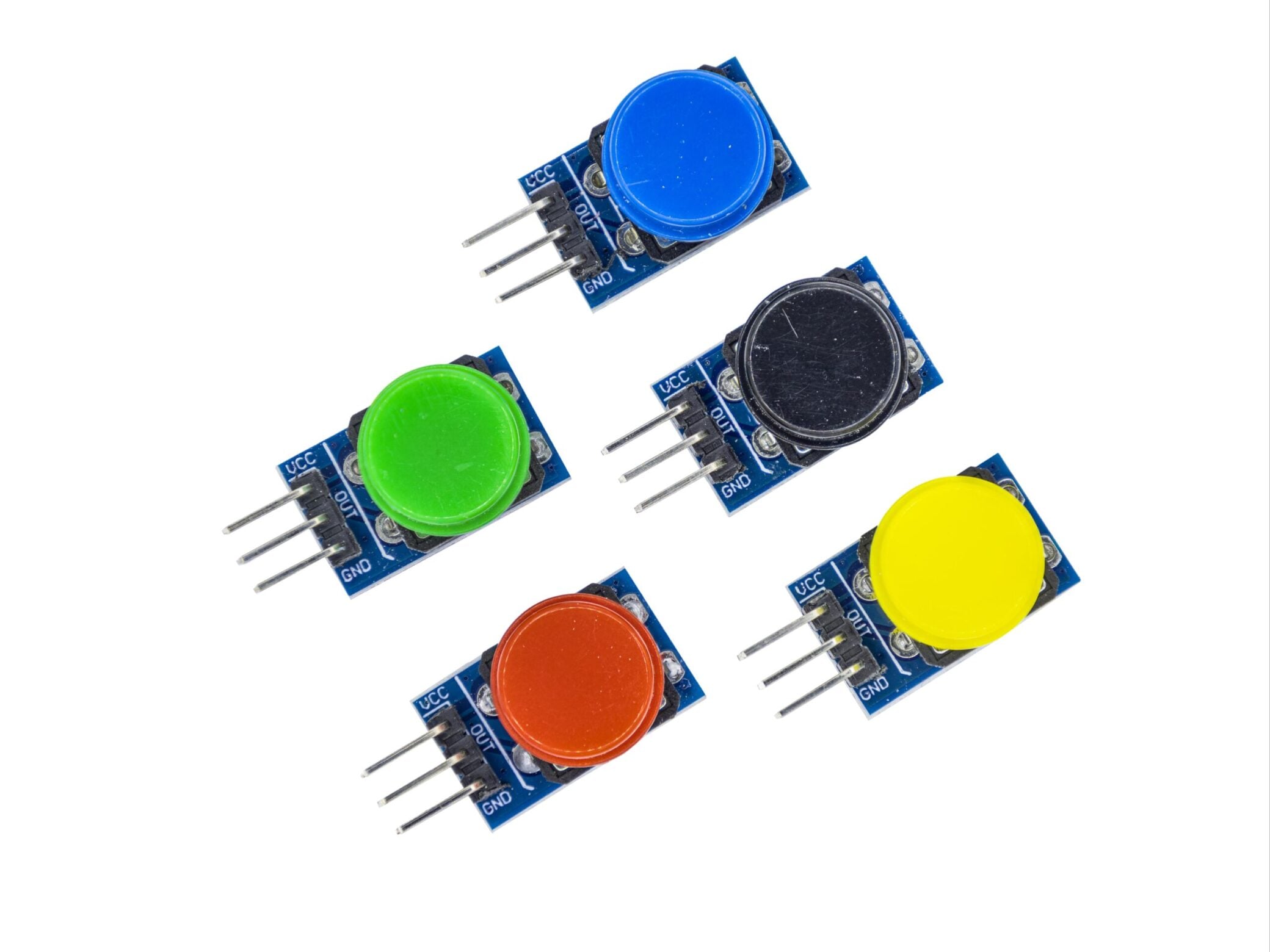
What is a button module?
The button module is a simple yet highly practical module. As the name suggests, it is triggered by a large button and can be used to perform a variety of functions. For example, it can send signals, trigger high or low voltage levels, control lighting, and start or stop music. Additionally, the button module is connected to the BOOT signal of the core module.
button
How does the button module work?
For button modules, button modules are often used as simple switches. When we press the button, the internal metal contacts close, thereby forming a circuit path. At this point, if the connection is a high-level signal, the circuit will output a high-level signal; if the connection is a low-level signal, the circuit will output a low-level signal. This simple on/off state makes the button module an indispensable component in many projects. Additionally,Since the button module is connected to the BOOT signal of the core module, this means we can use the button module to control the core module’s startup or reset, providing greater flexibility for project implementation.

Button module schematic diagram
What is the big key button module we are introducing today?
BIG KEY Button Module This large button module differs from other standard button modules. Its key feature is its larger button size, which makes it easier for users to operate, particularly suitable for applications requiring frequent pressing or clear operational feedback. The large button design makes the touch feel more distinct, allowing users to easily identify and operate the buttons even in low-light environments. Additionally, this module offers high durability, capable of withstanding heavy pressure use without damage, making it ideal for long-term projects or products.
What are the types of big key button modules?
Large button modules can typically be classified based on their physical characteristics and functions. Common types include self-locking large buttons, non-self-locking large buttons, and illuminated large buttons. Self-locking buttons remain locked in the pressed position, making them suitable for applications requiring prolonged signal maintenance;Non-self-locking button keys automatically rebound after release and are suitable for short-term trigger operations; The illuminated large buttons integrate LED lighting within the button, providing not only good operational feedback but also intuitive visual cues to enhance human-machine interaction. Regarding switches, button modules used as switches can be further categorized into button switches, touch switches, and membrane switches.
Button switches are the most common type, operating through instantaneous triggering—pressing results in a high voltage level, and releasing results in a low voltage level. Touch switches, as the name suggests, require no pressing; simply touching them lightly triggers the conversion between high and low voltage levels. They can be applied in sealed vacuum environments, while membrane switches use flexible substrates with conductive layers, featuring lightweight, thin, and durable characteristics.

membrane switch

touch switch
Key features of the button module
- Large button size for easy operation
- Clear operation feedback, preventing accidental touches
- Output logic: high level when triggered, low level when released
- High compatibility, compatible with most sensor expansion boards
- Compact overall button structure for easy integration
- Wide range of applications
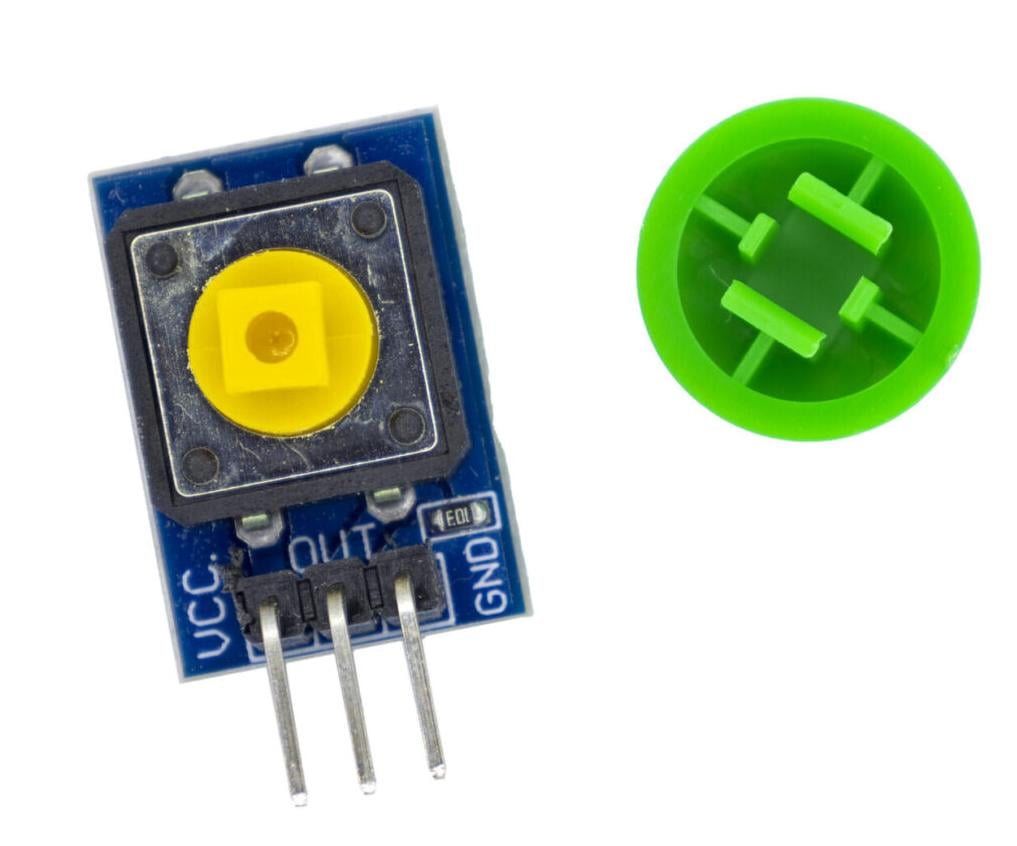
big key button module pins
_副本-scaled-scaled.jpg "BIG KEY Button module 6")
button module pins
- VCC: Power supply positive terminal, used to provide power to the button module.
- OUT: Output pin, used to output the button’s trigger signal. When the button is pressed, the OUT pin outputs a high-level signal; when the button is released, the OUT pin outputs a low-level signal, enabling communication with Arduino or other microcontrollers via high and low-level outputs.
- GND: The negative terminal of the power supply, together with VCC, forms a circuit loop.
Product parameters
| Parameter | Details |
|---|---|
| Operating Voltage | 3.5V-5V |
| Output Signal | Triggers a low level when pressed, outputs a high level when released. |
| Color | Multiple colors available: red, green, blue, black, yellow |
| Product Dimensions | 3.9 x 2.83 x 0.75 inches |
| Available Platforms | ARM, microcontrollers, Arduino, Raspberry Pi, etc. |
What are the application areas of the big key button module?
The application areas of large button modules are extremely diverse, and their specific uses vary depending on the function they serve. For instance, in smart home systems, they can function as physical buttons for controlling light switches or adjusting volume levels, offering users an intuitive and convenient operating experience. In industrial automation, large button modules are commonly installed on control panels to initiate or stop machine operations, ensuring operators can execute control commands promptly and accurately.
Additionally, in video game consoles, remote-controlled cars, and other toy products, large button modules play a crucial role in providing clear operational feedback, enhancing the interactivity and fun of the gaming experience. In the education sector, they can also be used to create simple teaching experimental devices, helping students better understand circuit principles and switch logic.
Example of connecting a big key button module to Arduino to implement musical instrument
Based on the characteristics of the large key button module, we can connect it to Arduino to create a simple and convenient electronic piano. Through code, we can not only play the notes do, re, mi, fa, and so, but also play or pause music with a single button. Below, we will show you the wiring effect and the effect demonstration.

BOTTON CONNECT ARDUINO
Connect to Arduino Sample code
					// Note definitions
#define NOTE_B0 31
#define NOTE_C1 33
#define NOTE_CS1 35
#define NOTE_D1 37
#define NOTE_DS1 39
#define NOTE_E1 41
#define NOTE_F1 44
#define NOTE_FS1 46
#define NOTE_G1 49
#define NOTE_GS1 52
#define NOTE_A1 55
#define NOTE_AS1 58
#define NOTE_B1 62
#define NOTE_C2 65
#define NOTE_CS2 69
#define NOTE_D2 73
#define NOTE_DS2 78
#define NOTE_E2 82
#define NOTE_F2 87
#define NOTE_FS2 93
#define NOTE_G2 98
#define NOTE_GS2 104
#define NOTE_A2 110
#define NOTE_AS2 117
#define NOTE_B2 123
#define NOTE_C3 131
#define NOTE_CS3 139
#define NOTE_D3 147
#define NOTE_DS3 156
#define NOTE_E3 165
#define NOTE_F3 175
#define NOTE_FS3 185
#define NOTE_G3 196
#define NOTE_GS3 208
#define NOTE_A3 220
#define NOTE_AS3 233
#define NOTE_B3 247
#define NOTE_C4 262  // Do
#define NOTE_CS4 277
#define NOTE_D4 294  // Re
#define NOTE_DS4 311
#define NOTE_E4 330  // Mi
#define NOTE_F4 349  // Fa
#define NOTE_FS4 370
#define NOTE_G4 392  // So
#define NOTE_GS4 415
#define NOTE_A4 440
#define NOTE_AS4 466
#define NOTE_B4 494
#define NOTE_C5 523
#define NOTE_CS5 554
#define NOTE_D5 587
#define NOTE_DS5 622
#define NOTE_E5 659
#define NOTE_F5 698
#define NOTE_FS5 740
#define NOTE_G5 784
#define NOTE_GS5 831
#define NOTE_A5 880
#define NOTE_AS5 932
#define NOTE_B5 988
#define NOTE_C6 1047
#define NOTE_CS6 1109
#define NOTE_D6 1175
#define NOTE_DS6 1245
#define NOTE_E6 1319
#define NOTE_F6 1397
#define NOTE_FS6 1480
#define NOTE_G6 1568
#define NOTE_GS6 1661
#define NOTE_A6 1760
#define NOTE_AS6 1865
#define NOTE_B6 1976
#define NOTE_C7 2093
#define NOTE_CS7 2217
#define NOTE_D7 2349
#define NOTE_DS7 2489
#define NOTE_E7 2637
#define NOTE_F7 2794
#define NOTE_FS7 2960
#define NOTE_G7 3136
#define NOTE_GS7 3322
#define NOTE_A7 3520
#define NOTE_AS7 3729
#define NOTE_B7 3951
#define NOTE_C8 4186
#define NOTE_CS8 4435
#define NOTE_D8 4699
#define NOTE_DS8 4978

const int buzzerPin = 8;        // Buzzer pin
const int playButtonPin = 2;    // Play/Pause button pin

// 5 note button pins
const int doButtonPin = 3;      // Do button
const int reButtonPin = 4;      // Re button
const int miButtonPin = 5;      // Mi button
const int faButtonPin = 6;      // Fa button
const int soButtonPin = 7;      // So button

// 5 basic note frequencies
const int noteDo = NOTE_C4;
const int noteRe = NOTE_D4;
const int noteMi = NOTE_E4;
const int noteFa = NOTE_F4;
const int noteSo = NOTE_G4;

// Orchid Pavilion Prelude melody
int melody[] = {
  NOTE_G4, NOTE_A4, NOTE_G4, NOTE_E4,
  NOTE_G4, NOTE_A4, NOTE_G4, NOTE_E4,
  NOTE_D4, NOTE_E4, NOTE_D4, NOTE_C4,
  NOTE_D4, NOTE_E4, NOTE_D4, NOTE_C4,

  NOTE_G4, NOTE_A4, NOTE_G4, NOTE_E4,
  NOTE_G4, NOTE_A4, NOTE_G4, NOTE_E4,
  NOTE_D4, NOTE_E4, NOTE_D4, NOTE_C4,
  NOTE_D4, NOTE_E4, NOTE_D4, NOTE_C4,

  NOTE_E4, NOTE_G4, NOTE_A4, NOTE_C5,
  NOTE_A4, NOTE_G4, NOTE_E4, NOTE_G4,
  NOTE_A4, NOTE_G4, NOTE_E4, NOTE_D4,
  NOTE_E4, NOTE_D4, NOTE_C4, NOTE_D4
};

// Note durations (4=quarter note, 8=eighth note)
int noteDurations[] = {
  4, 8, 8, 4,
  4, 8, 8, 4,
  4, 8, 8, 4,
  4, 8, 8, 4,

  4, 8, 8, 4,
  4, 8, 8, 4,
  4, 8, 8, 4,
  4, 8, 8, 4,

  8, 8, 8, 8,
  8, 8, 8, 8,
  8, 8, 8, 8,
  8, 8, 8, 8
};

// State variables
int playButtonState = 0;        // Current play button state
int lastPlayButtonState = 0;    // Previous play button state
int noteButtonStates[5] = {1,1,1,1,1}; // Current note button states
int lastNoteButtonStates[5] = {1,1,1,1,1}; // Previous note button states
int playState = 0;              // Play state (0=stopped, 1=playing)
int currentNote = 0;            // Current note index
unsigned long noteStartTime = 0; // Current note start time
int noteDuration = 0;           // Current note duration
int pauseBetweenNotes = 0;      // Pause between notes

void setup() {
  pinMode(buzzerPin, OUTPUT);
  pinMode(playButtonPin, INPUT_PULLUP); // Use internal pull-up resistor

  // Set up 5 note button pins
  pinMode(doButtonPin, INPUT_PULLUP);
  pinMode(reButtonPin, INPUT_PULLUP);
  pinMode(miButtonPin, INPUT_PULLUP);
  pinMode(faButtonPin, INPUT_PULLUP);
  pinMode(soButtonPin, INPUT_PULLUP);

  Serial.begin(9600);
  Serial.println("Ready to play 'Orchid Pavilion Prelude'...");
  Serial.println("Press play button to start/pause");
  Serial.println("Press note buttons to play corresponding notes (Do/Re/Mi/Fa/So)");
}

void loop() {
  // Check play/pause button state change
  checkPlayButton();

  // Note buttons only work when not playing melody
  if (!playState) {
    checkNoteButtons();
  }

  // If in play state, continue playing melody
  if (playState) {
    playMelody();
  }
}

// Check play/pause button
void checkPlayButton() {
  playButtonState = digitalRead(playButtonPin);

  // Detect button state change (press)
  if (playButtonState == LOW && lastPlayButtonState == HIGH) {
    // Toggle play state
    playState = !playState;

    if (playState) {
      Serial.println("Start playing");
    } else {
      Serial.println("Pause playing");
      noTone(buzzerPin); // Stop playing
    }

    // Debounce delay
    delay(50);
  }

  // Update previous button state
  lastPlayButtonState = playButtonState;
}

// Check note buttons and play corresponding notes
void checkNoteButtons() {
  // Read note button states
  noteButtonStates[0] = digitalRead(doButtonPin);
  noteButtonStates[1] = digitalRead(reButtonPin);
  noteButtonStates[2] = digitalRead(miButtonPin);
  noteButtonStates[3] = digitalRead(faButtonPin);
  noteButtonStates[4] = digitalRead(soButtonPin);

  // Check Do button (state changes from HIGH to LOW when pressed)
  if (noteButtonStates[0] == LOW && lastNoteButtonStates[0] == HIGH) {
    Serial.println("Play: Do");
    tone(buzzerPin, noteDo, 300); // Play for 300ms
    delay(350); // Wait for playback to finish, plus 50ms debounce
    noTone(buzzerPin);
  }
  // Check Re button
  else if (noteButtonStates[1] == LOW && lastNoteButtonStates[1] == HIGH) {
    Serial.println("Play: Re");
    tone(buzzerPin, noteRe, 300);
    delay(350);
    noTone(buzzerPin);
  }
  // Check Mi button
  else if (noteButtonStates[2] == LOW && lastNoteButtonStates[2] == HIGH) {
    Serial.println("Play: Mi");
    tone(buzzerPin, noteMi, 300);
    delay(350);
    noTone(buzzerPin);
  }
  // Check Fa button
  else if (noteButtonStates[3] == LOW && lastNoteButtonStates[3] == HIGH) {
    Serial.println("Play: Fa");
    tone(buzzerPin, noteFa, 300);
    delay(350);
    noTone(buzzerPin);
  }
  // Check So button
  else if (noteButtonStates[4] == LOW && lastNoteButtonStates[4] == HIGH) {
    Serial.println("Play: So");
    tone(buzzerPin, noteSo, 300);
    delay(350);
    noTone(buzzerPin);
  }

  // Update previous note button states
  for (int i = 0; i < 5; i++) {
    lastNoteButtonStates[i] = noteButtonStates[i];
  }
}

// Play melody
void playMelody() {
  // Calculate number of notes
  int melodyLength = sizeof(melody) / sizeof(melody[0]);

  // If current note hasn't started playing yet
  if (noteStartTime == 0) {
    noteDuration = 1000 / noteDurations[currentNote];
    pauseBetweenNotes = noteDuration * 1.30;
    tone(buzzerPin, melody[currentNote], noteDuration);
    noteStartTime = millis();
  }

  // Check if current note has finished playing
  if (millis() - noteStartTime >= pauseBetweenNotes) {
    noTone(buzzerPin);
    currentNote++;
    noteStartTime = 0;

    // If reached the end, start over
    if (currentNote >= melodyLength) {
      currentNote = 0;
    }
  }

  // Check play button state (for pausing)
  playButtonState = digitalRead(playButtonPin);
  if (playButtonState == LOW && lastPlayButtonState == HIGH) {
    playState = !playState;
    noTone(buzzerPin);
    delay(50);
  }
  lastPlayButtonState = playButtonState;
}
FAQS
How to add multiple buttons in one module Divi?
You can use a dedicated multi-button module. First, click Add Module, then click the “+” icon to add individual buttons.Then, you can configure the layout, responsive behavior, and alignment options to refine your multiple buttons. You can also place them individually, one by one, in a single column. In addition, you can use code to add multiple button modules to a single module.
where is reset button on blink sync module?
There are many different models of Blink Sync modules, and we need to analyze the reset button based on the specific model.
Blink Sync Module (1st generation): The reset button is located on the side of the device, next to the USB port.
Blink Sync Module 2, Sync Module Core, and Sync Module XR: The reset button is located on the back of the device.
What Arduino function is used to set a pin as an input for the push button?
In Arduino, we often use the INPUT_PULLUP mode to achieve this, and the code is usually:pinMode(buttonPin, INPUT_PULLUP).