

Blog
5 Minutes to Grasp the Basics of Joystick Modules

What does a joystick module do?
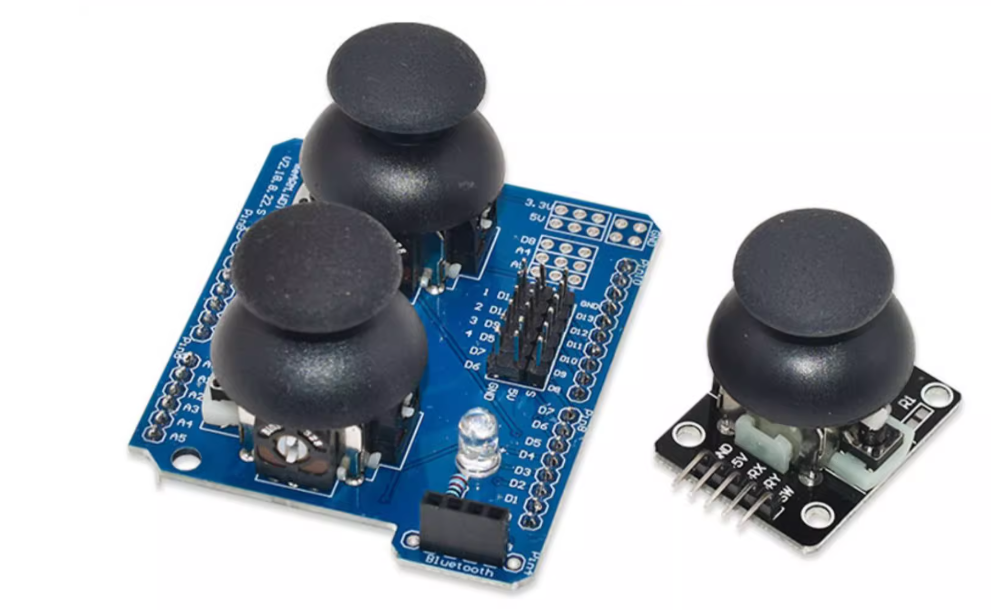
When you hear the word “joystick”, you usually think of a game controller first. This is indeed a very common application field of the joystick module, but in fact, it has a much broader market in the electronic field and other fields.
You can imagine that a joystick can control many things. For example, you can control a mechanical arm with it. You can use two or more joysticks to manipulate the mechanical arm to perform precise movements. Or you can make a stable slide rail to control the movement of your camera, allowing it to smoothly and conveniently switch perspectives and take photos.
Compared to the cross-shaped joystick, the joystick module has more selectable positions and can perform more precise operations. Next, I will tell you the principle of the joystick module and how to apply it specifically.
Basic Concepts
Before you understand how to apply a joystick, you must first understand what a joystick is and how it works.
The most common type we know is the dual-axis joystick. A dual-axis joystick refers to a joystick that can simulate control of the X-axis and Y-axis. It is generally manipulated by moving within a circular limited area. By detecting the specific position of the joystick, its X-axis and Y-axis can be read. For example, if you slide the joystick to the lower right, it can read your X-axis and Y-axis to determine your exact position in the lower right for precise perception.
So, simply saying, it is a two-dimensional potentiometer.
How does a two-axis joystick work?
After understanding his basic concepts, we can imagine his basic structure and principle. First, there are two potentiometers, one for detecting the X-axis and the other for detecting the Y-axis. This is the most basic component. To limit its movement within a circle, the bottom of the joystick is usually a ball socket structure to restrict the joystick’s movable distance and contains a spring so that the joystick can return to its original position when you release it. When you use it, you will change the resistance of the two potentiometers.
Specifically, as follows: When you push the joystick up and down, it will change the resistance value of the Y-axis potentiometer. When you push the joystick left and right, it will change the resistance value of the X-axis potentiometer. When you push the joystick diagonally, it will change the resistance values of both potentiometers at the same time. According to the size of the resistance value (analog quantity) read, the microcontroller (such as a single-chip microcomputer) can identify exactly how you manipulate the joystick and use the read value to perform specific operations. Not only that, most dual-axis analog joysticks also have a function to press the joystick. After pressing the joystick, it usually outputs a digital signal, the principle is the same as a button. This can generate a high or low level signal.
The specific analog values read
After understanding the working principle of the dual-axis joystick, then I will introduce the specific analog values read.
Firstly, the voltage values of the analog quantities read from the X-axis and Y-axis have a range, generally between 0 and 1023.
When you fully swing the joystick to the left, the analog value read from the X-axis should be close to 0. Conversely, when you fully swing the joystick to the right, the analog value read from the X-axis should be close to 1023.
Similarly, moving the joystick up and down changes the analog value of the Y-axis. When you fully push the joystick upwards, the analog value read from the Y-axis should be close to 0. Conversely, when you push the joystick downwards, the analog value read from the Y-axis should be close to 1023.
From the above, we can conclude that when the joystick is not moved, its analog value is at the middle value of the two potentiometers, which is half of 1023, close to or equal to 512.
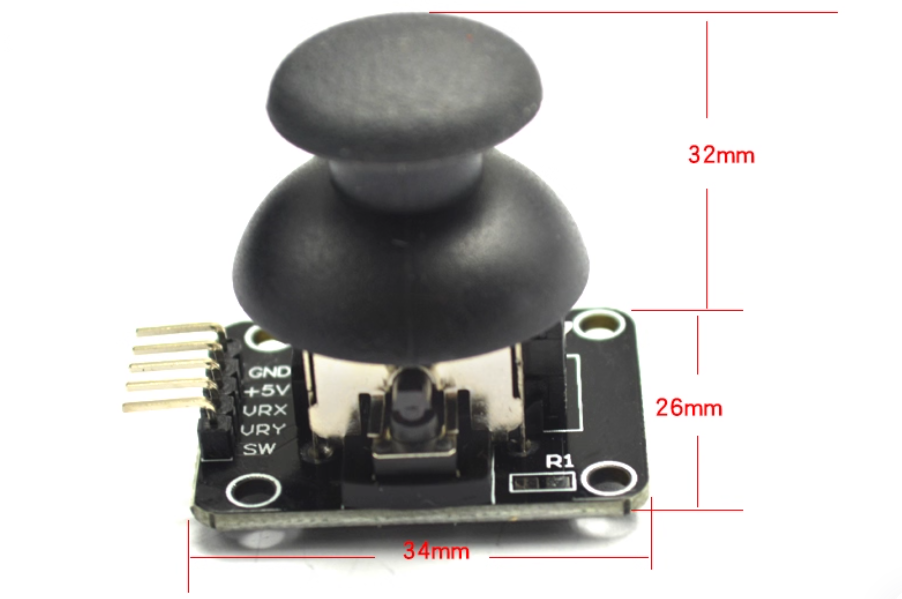
What size is HW 504?
PS2 Dual-Axis Joystick Module Size: 34mm*26mm*32mm
PS2 Dual-Axis Joystick Module & Arduino
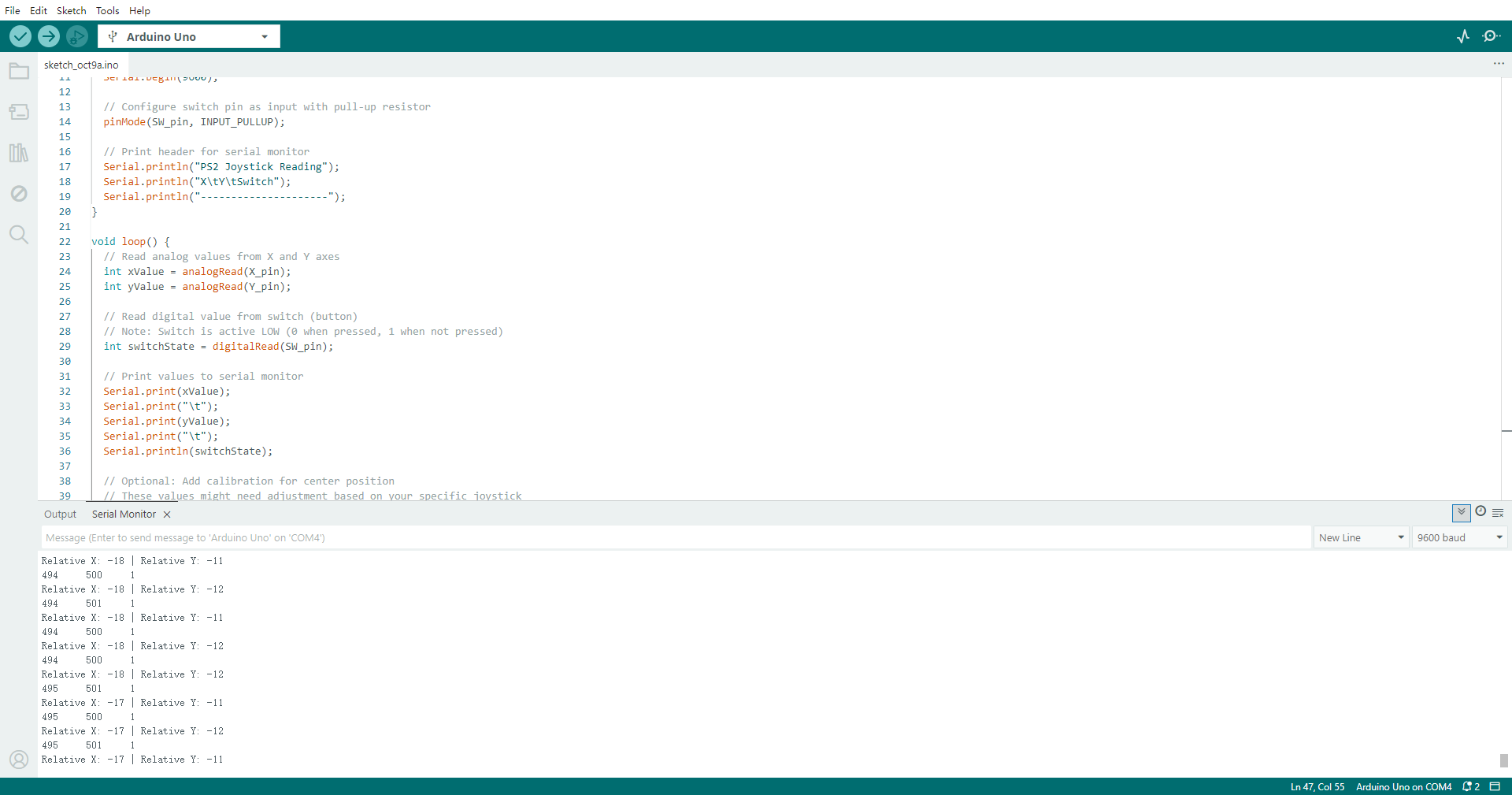
After understanding its usage principle, you can have a clearer understanding of its output status through an Arduino. The items required for the following arduino project include:arduino uno,HW-504 joystick module, and a few DuPont wires. First, open the Arduino IDE and enter the following code.
Connect in following way:
PS2 Joystick Connections:
VCC → Arduino 5V
GND → Arduino GND
VRx (X-axis) → Arduino Analog Pin A0
VRy (Y-axis) → Arduino Analog Pin A1
SW (Switch/Button) → Arduino Digital Pin 2
Burn the code into the Arduino, and you can view the current analog output of the joystick through the serial monitor.
					// PS2 Joystick Analog Read
// Reads X and Y axis values from a PS2-style analog joystick

// Define pin connections
const int SW_pin = 2;   // Digital pin connected to switch
const int X_pin = A0;   // Analog pin connected to X-axis
const int Y_pin = A1;   // Analog pin connected to Y-axis

void setup() {
  // Initialize serial communication
  Serial.begin(9600);

  // Configure switch pin as input with pull-up resistor
  pinMode(SW_pin, INPUT_PULLUP);

  // Print header for serial monitor
  Serial.println("PS2 Joystick Reading");
  Serial.println("X\tY\tSwitch");
  Serial.println("---------------------");
}

void loop() {
  // Read analog values from X and Y axes
  int xValue = analogRead(X_pin);
  int yValue = analogRead(Y_pin);

  // Read digital value from switch (button)
  // Note: Switch is active LOW (0 when pressed, 1 when not pressed)
  int switchState = digitalRead(SW_pin);

  // Print values to serial monitor
  Serial.print(xValue);
  Serial.print("\t");
  Serial.print(yValue);
  Serial.print("\t");
  Serial.println(switchState);

  // Optional: Add calibration for center position
  // These values might need adjustment based on your specific joystick
  int xCenter = 512;  // Typical center value for 10-bit ADC
  int yCenter = 512;

  // Calculate relative position from center
  int xRelative = xValue - xCenter;
  int yRelative = yValue - yCenter;

  // Print relative values (comment out if not needed)
  Serial.print("Relative X: ");
  Serial.print(xRelative);
  Serial.print(" | Relative Y: ");
  Serial.println(yRelative);

  // Add some delay to make serial output readable
  delay(200);
}
Advanced usage instructions: Control the RGB light ring with the joystick module
After understanding the application of the joystick, you can control other components based on the obtained analog quantities. The following are the items used in the DIY project of controlling RGB lights with a joystick: Arduino Uno, ps2 joystick module, RGB three-color lights, and a few DuPont wire.
Codes as follows:
					#include <FastLED.h>

// Pin Definitions
const int stickX_Pin = A0;    // Joystick X-axis
const int stickY_Pin = A1;    // Joystick Y-axis
const int stickButton_Pin = 2; // Joystick Button

// RGB LED PWM Pins
const int redPin = 9;
const int greenPin = 10;
const int bluePin = 11;

// Variables
int xValue = 0;
int yValue = 0;
bool lastButtonState = HIGH;
bool ledState = false;        // Master switch

// HSV Color Variables
uint8_t hue = 0;        // Hue (0-255) corresponding to 0-360 degree color wheel
uint8_t saturation = 255; // Saturation (0-255), fixed at maximum for pure colors
uint8_t brightness = 0;   // Brightness (0-255)

// Debouncing and Smoothing Variables
unsigned long lastDebounceTime = 0;
const unsigned long debounceDelay = 50;

void setup() {
  pinMode(stickButton_Pin, INPUT_PULLUP);
  pinMode(redPin, OUTPUT);
  pinMode(greenPin, OUTPUT);
  pinMode(bluePin, OUTPUT);

  // Initial state: OFF
  setRGB(0, 0, 0);

  Serial.begin(9600);
}

void loop() {
  // 1. Read Joystick Values
  xValue = analogRead(stickX_Pin);
  yValue = analogRead(stickY_Pin);

  // 2. Process X-axis - Control Hue
  // Map X value from 0-1023 to hue range 0-255
  hue = map(xValue, 0, 1023, 0, 255);

  // 3. Process Y-axis - Control Brightness (only when ON)
  if (ledState) {
    brightness = map(yValue, 0, 1023, 0, 255);
  } else {
    brightness = 0; // Brightness is 0 when OFF
  }

  // 4. Convert HSV to RGB and Output
  CRGB color;
  hsv2rgb_rainbow(CHSV(hue, saturation, brightness), color);
  setRGB(color.r, color.g, color.b);

  // 5. Process Button - Toggle Switch with Debouncing
  bool currentButtonState = digitalRead(stickButton_Pin);
  if (currentButtonState != lastButtonState) {
    lastDebounceTime = millis();
  }
  if ((millis() - lastDebounceTime) > debounceDelay) {
    if (currentButtonState == LOW) { // Button is pressed
      ledState = !ledState;
      lastDebounceTime = millis(); // Prevent multiple triggers
    }
  }
  lastButtonState = currentButtonState;

  // Serial Debug Output (Optional)
  Serial.print("H: "); Serial.print(hue);
  Serial.print(" | B: "); Serial.print(brightness);
  Serial.print(" | State: "); Serial.println(ledState);

  delay(50);
}

// Custom Function: Write RGB values to pins
void setRGB(uint8_t r, uint8_t g, uint8_t b) {
  // For Common Anode RGB LED, invert values (LOW turns ON)
  analogWrite(redPin,   255 - r);
  analogWrite(greenPin, 255 - g);
  analogWrite(bluePin,  255 - b);

  // For Common Cathode RGB LED, use direct writing:
  // analogWrite(redPin, r);
  // analogWrite(greenPin, g);
  // analogWrite(bluePin, b);
}
Demo Video:
Other Version
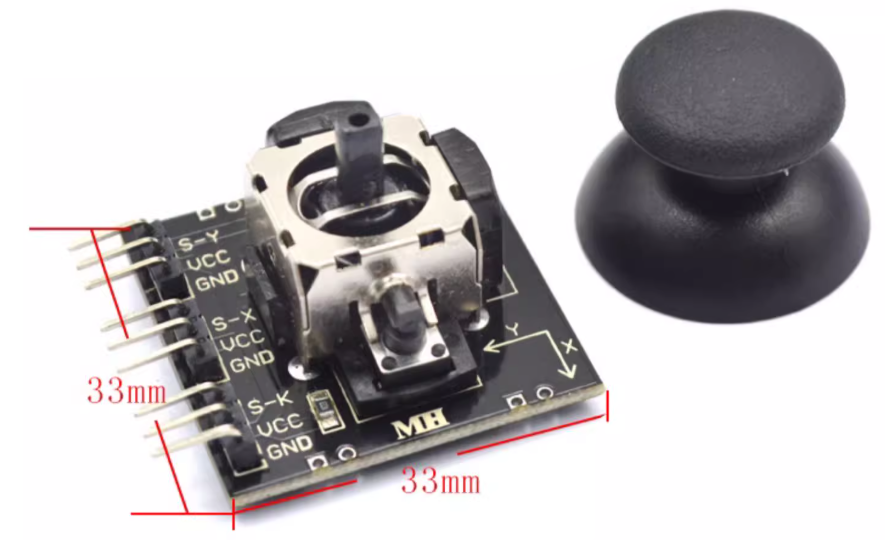
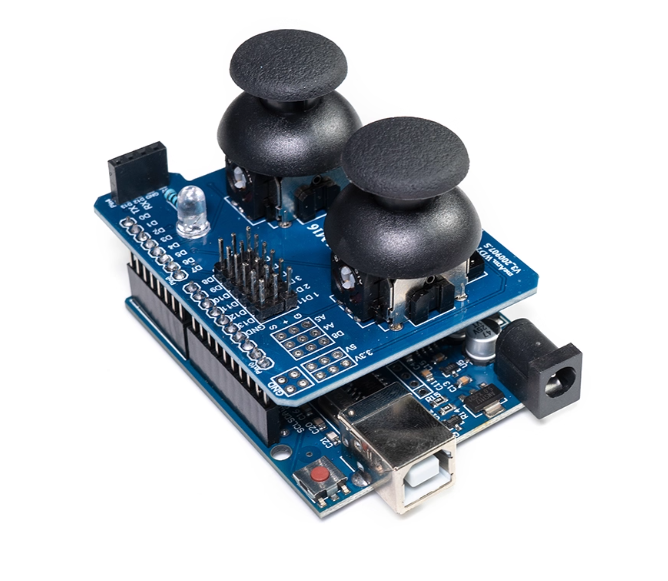
There are other different types of PS2 joystick modules, such as 9-pin and dual joystick types. The working principle and output analog quantity of the 9-pin are the same. The working principle of the dual joysticks is the same. The analog quantities are divided into four, which need to be distinguished from the single joystick.
9 pin Version:
Its functions are the same as the 5pin version.
Dual-channel Version
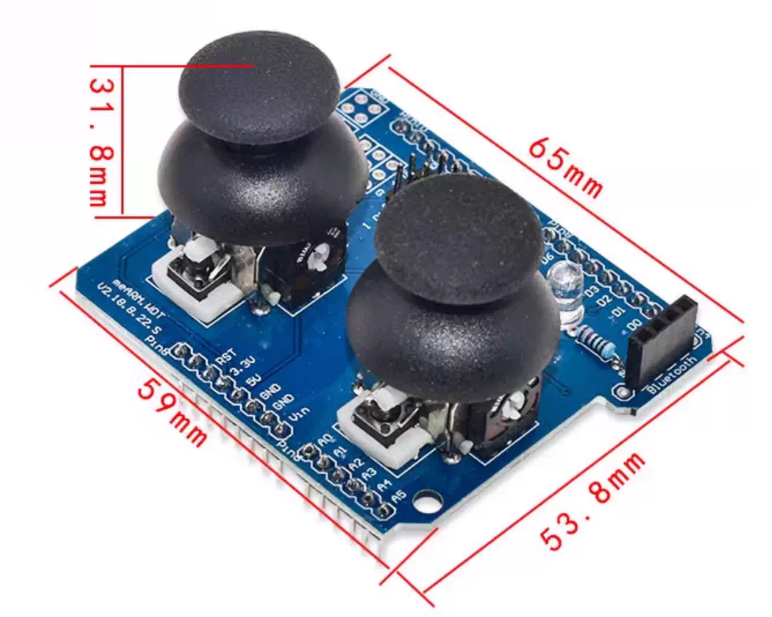
This version is compatible with Arduino, and the specific usage method is as follows.
If you want to view or purchase ps2-dual-axis-joystick-module product, please click here.
FAQ
What are the common joystick module specifications?
| Parameter Category | Specific Parameter | Specification Value | Unit | Notes |
|---|---|---|---|---|
| Power Parameters | Operating Voltage | 3.3 – 5.0 | V DC | Typical 5V |
| Operating Current | 10 – 20 | mA | No load | |
| Maximum Current | 0 – 50 | mA | Including switch | |
| Analog Output | ADC Resolution | 10 | bit | Arduino compatible |
| Output Impedance | 10 | kΩ | Potentiometer value | |
| Linearity Error | ±5 | % | Typical | |
| Potentiometer Parameters | X-axis Potentiometer | 10 | kΩ | Type B characteristic |
| Y-axis Potentiometer | 10 | kΩ | Type B characteristic | |
| Potentiometer Tolerance | ±20 | % | ||
| Switch Parameters | Switch Type | Normally Open | Push button | |
| Contact Resistance | <100 | mΩ | ||
| Rated Current | 50 | mA | Maximum | |
| Operating Force | 1.5 – 5.0 | N | ||
| Signal Characteristics | Response Time | <10 | ms | |
| Settling Time | <1 | ms | ||
| Output Noise | 2 – 5 | LSB | ADC code fluctuation | |
| Temperature Drift | ±0.1 | %/°C | ||
| Mechanical Electrical | Insulation Resistance | >100 | MΩ | |
| Withstand Voltage | 500 | V AC | 1 minute | |
| Environmental Parameters | Operating Temperature | -20 – +70 | °C | Typical |
| Storage Temperature | -30 – +80 | °C | ||
| Humidity Range | 20 – 85 | %RH | Non-condensing |
What is the SW pin on a joystick?
The SW pin is a digital signal output pin after pressing the joystick. Its normal output is 1 and it becomes 0 when pressed. It is an extended digital signal pin of the two-axis joystick and works in the same way as a general key.