

Blog
PCF8563 RTC Arduino Application
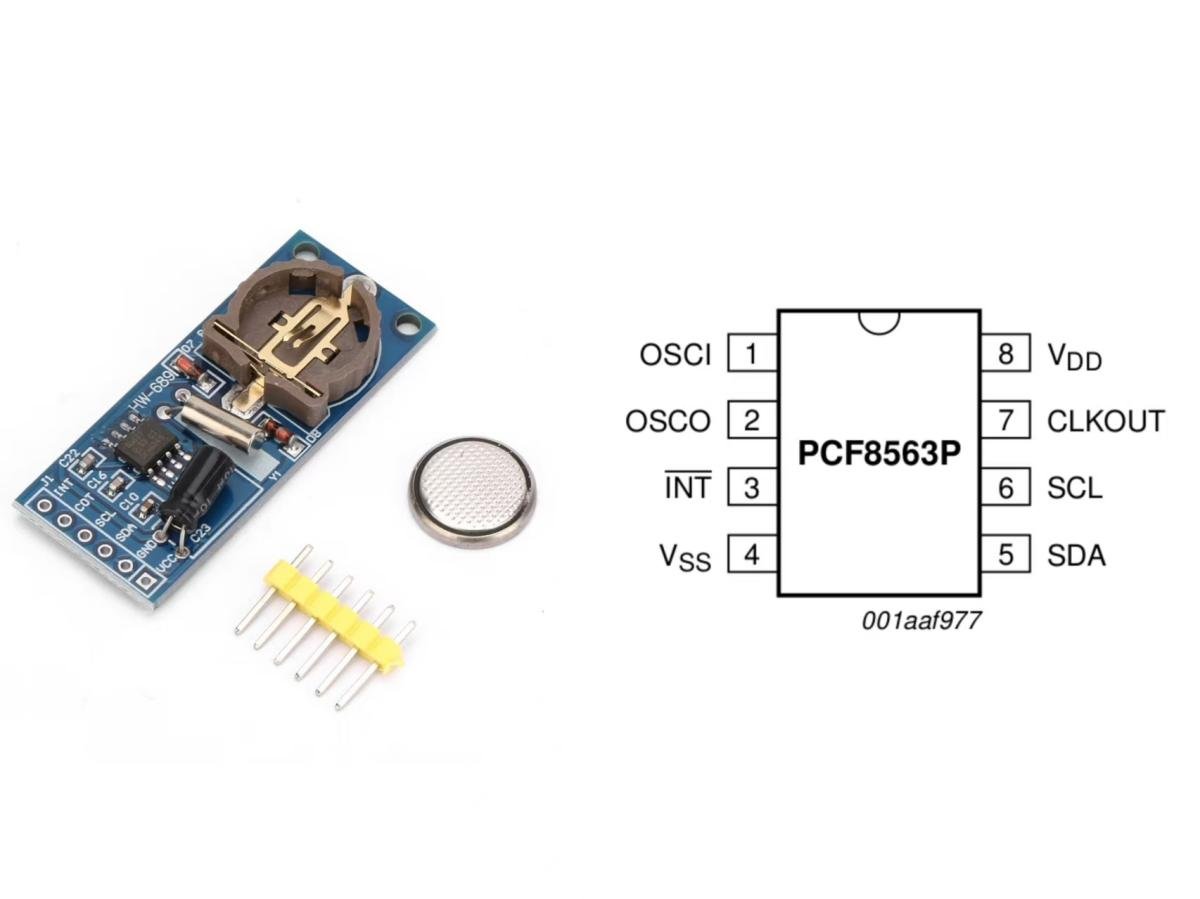
What is PCF8563 RTC?
The PCF8563 is a low-power real-time clock (RTC) chip developed by NXP Semiconductors—yep, that’s the “nxp pcf8563” you might come across. It tracks time down to the second, covering years, months, days, hours, and minutes. The pcf8563 battery is typically a coin cell. These batteries are compact and ultra-low-power, so when the main power cuts out, they feed just enough juice to keep the PCF8563 ticking—no lost time. The chip talks to microcontrollers via I2C, and you’ll find it in tons of devices that need reliable timekeeping: think smart alarms, data loggers, and anything else that needs to keep track of when things happen.
How does PCF8563 work?
The PCF8563 hooks up to an external 32.768kHz quartz crystal, which puts out a steady high-frequency signal that vibrates 32,768 times per second. This is the “baseline heartbeat” for timekeeping—how precise this frequency is directly locks in how accurate the clock runs. Then the signal runs through the chip’s internal frequency divider. After 15 stages of binary division (since 32,768 = 2¹⁵), it spits out a 1Hz pulse signal—one pulse per second. That’s the basic building block for counting seconds. Inside the PCF8563, there are multi-stage time counters. These counters use the 1Hz pulse as a trigger to count up time step by step (seconds to minutes, minutes to hours, etc.). All the current values of these counters get stored in real time in the chip’s on-board time registers—each time unit maps to its own separate register. Finally, the PCF8563 talks to external microcontrollers via the I2C protocol, which lets you read and write time data to and from the chip.
How to choose PCF8563?
No overthinking It, just go with what fits how you’ll actually use it:
- For seasoned tinkerers who want to mix and match parts freely, grab the PCF8563T—it’s just the chip in a TSSOP-8 package. Surface-mount solder it, then just remember to get your own crystal and battery holder.
- Newbies looking to skip the hassle? Dive straight into a PCF8563 RTC module. It comes with the chip, 32.768kHz crystal, and CR1220 battery holder all pre-installed—ready to use right out of the box.Want even easier? If you’re hooking it up directly to an Arduino or ESP32, the PCF8563 board is perfect. It has built-in pin headers, no extra soldering needed—just plug it in and you’re set.
- Need it for tough spots (like extreme heat or cold)? Go with the PCF88563TS. It’s industrial-grade and handles temps from -40°C to 85°C no problem.
Required materials
- Main Controller:pcf8563 arduino/esp32/raspberry pi;
- Core Components: pcf8563 rtc;
- Auxiliary Tools: jumper wires, button batteries;
- Reference Materials: pcf8563 schematic;
Circuit connection steps
- Power the Module: Wire the module VCC to Arduino5V pin, and its GND to Arduino GND pin.
- Set Up I2C Communication: Hook up the module SDA to Arduino A4 pin, and SCL to A5. The PCF8563 I2C address is 0x51—no need to tweak that.
- Install the Battery: Open the battery compartment, pop the battery in. This keeps the time from resetting when the power cuts out.
- Configure Interrupt (Optional): If you want to use the alarm feature, wire the module INT pin to Arduino D2 ( an external interrupt pin).
- A Quick Note on PCF8563 Circuit Design: The module already comes with built-in pull-up resistors (serve to stabilize I2C communication signals), so you do not need to add any extra ones.

Software Configuration
Install the PCF8563 Arduino library
First, fire up the Library Manager in Arduino IDE. Search for “PCF8563”, pick the library you need, then click Install. Once it’s installed, the library files—including pcf8563.h—will land in your Arduino libraries folder. These libraries are total lifesavers for streamlining the development process: they simplify time reading and writing, cutting down on a ton of extra work we’d otherwise have to put in.

PCF8563 Arduino basic example: displaying current time
Header Files
Why these two files make the module “listen”?
#include <Wire.h>
#include <RTClib.h>
RTClib is an all-in-one adapter layer. It is pre-packaged with all the low-level operations for the PCF8563—things like reading registers via I2C and converting raw time data into human-readable formats. By including RTClib.h, we are essentially importing all that complex logic into our code, saving us from the hassle of writing register read/write functions from scratch (which would mean poring over the datasheet for hours).
Wire.h, on the other hand, is Arduino’s built-in I2C communication library. The PCF8563 talks to the microcontroller via I2C, so without Wire.h, the module would never “hear” any commands. In short: Wire.h is the “communication cable,” and RTClib.h is the “translator”—you can not skip either.
Object Initialization
What does RTC_PCF8563 actually do?
RTC_PCF8563 rtc;
This line looks simple, but it is actually creating a dedicated manager for the module. The RTC_PCF8563 class in RTClib hides a lot of “behind-the-scenes” work:
It hardcodes the PCF8563’s I2C address (0x51, as specified in the datasheet);
It wraps core functions like begin() (initialize the module), adjust() (set time), and now() (read time)—each of these functions translates our high-level commands into register-level instructions the PCF8563 understands.
Think of rtc as a personal assistant: When we say rtc.now(), it goes into the module’s registers, fetches the time, and brings it back in a format we can read. When we say rtc.adjust(…), it takes our desired time and fills it into the correct registers—no manual register tweaking needed.
Communication Check
Wire.begin() vs. rtc.begin()
Wire.begin();
if (!rtc.begin()) {
Serial.println(“PCF8563 module not found! Check wiring!”);
while (1); }
Newbies often mix these up, so let’s clarify: Wire.begin() “opens the I2C communication channel” (like plugging in a phone line), while rtc.begin() “dials the module’s number to see if it picks up” (verifies the module is connected and responsive).
Here’s the lowdown on rtc.begin(): It sends a test “read register” command to the PCF8563’s I2C address (0x51) via the I2C bus. If the module responds, the connection is good; if not, either the wiring’s wrong (e.g., swapped SDA/SCL pins) or the module is faulty. I’ve been there—once I spent 30 minutes troubleshooting, only to realize a jumper wire was loose. Always double-check the connections first!
Time Setting
The “One-Time Rule” for rtc.adjust(DateTime(…))
// Set time on first use only. Format: Year, Month, Day, Hour, Minute, Second
// rtc.adjust(DateTime(2025, 9, 5, 16, 30, 0));
Why must you comment this line out after setting the time? Because the PCF8563 has a built-in battery backup—with a coin cell installed, it keeps time running even when the Arduino loses power. If you leave this line uncommented, the Arduino will overwrite the module’s time with the fixed value every time it powers up—defeating the purpose of an “real-time clock” (it’d be like buying a watch and manually resetting it every morning).
The parameter order in DateTime(…) (Year,Month,Day,Hour,Minute,Second) is fixed by RTClib. Under the hood, adjust() converts these values into a format the PCF8563’s registers understand (e.g.months are converted to BCD codes) and writes them to registers 0x02–0x07—addresses explicitly designated for time storage in the datasheet.
Reading Time
How DateTime now = rtc.now() Pulls Data from Registers?
DateTime now = rtc.now(); // Read current time
This line hides a three-step process:
1)rtc.now() sends an I2C command to the PCF8563: “Send me the data from registers 0x02 to 0x07”;
2)The module responds with 6 bytes of raw data (representing seconds, minutes, hours, days, months, and years—all in BCD format);
3)The now() function converts these BCD codes to decimal (e.g., 0x16 becomes 22) and organizes them into the human-readable DateTime object now.
For example: If the module’s “hour” register returns 0x10, now.hour() converts it to 16 (4 PM); if the “seconds” register returns 0x05, now.second() gives 5. RTClib handles all the tedious BCD-to-decimal conversion—no need to write that logic ourselves.
Day of the Week
dayOfTheWeek() : Doesn’t “Read” It—It Calculates It!
switch(now.dayOfTheWeek()) {
case 0: Serial.print(“Sunday”); break;
// … handle other days}
Here’s a surprise: The PCF8563’s registers don’t store the “day of the week” at all! dayOfTheWeek() uses an algorithm (like Zeller’s Congruence) to calculate the day based on the “year-month-day” values. The result maps to a number: 0 = Sunday, 6 = Saturday—a standard in Western timekeeping.
I tested this: Setting the time to September 5, 2025 (a Thursday) made dayOfTheWeek() return 4—spot on. This is purely a software calculation, not something the module “remembers.” Even if the module loses power (but keeps time via battery), it’ll recalculate the correct day when powered back on.
Full Code
					#include <Wire.h>

#include <RTClib.h>

// Initialize PCF8563 object

RTC_PCF8563 rtc;

void setup() {

  Serial.begin(9600);

  Wire.begin();

  // Check if module is connected – stays here if not

  if (!rtc.begin()) {

    Serial.println("PCF8563 module not found! Check wiring!");

    while (1);

  }

  Serial.println("PCF8563 ready to go!");

  // Uncomment to set time first use, then re-comment

  // Format: month, day, year, hour, minute, second (local style: month first)

  // rtc.adjust(DateTime(9, 5, 2025, 15, 30, 0));  // Example: Sept 5th 2025, 3:30 PM

}

void loop() {

  DateTime now = rtc.now();

  // Print time (month/day/year hour:minute:second weekday)

  Serial.print("Current Time: ");

  Serial.print(now.month(), DEC);  // Month first

  Serial.print("/");

  Serial.print(now.day(), DEC);    // Then day

  Serial.print("/");

  Serial.print(now.year(), DEC);   // Then year

  Serial.print(" ");

  // Format hour (24-hour format, common here)

  if (now.hour() < 10) Serial.print("0");

  Serial.print(now.hour(), DEC);

  Serial.print(":");

  // Format minute

  if (now.minute() < 10) Serial.print("0");

  Serial.print(now.minute(), DEC);

  Serial.print(":");

  // Format second

  if (now.second() < 10) Serial.print("0");

  Serial.print(now.second(), DEC);

  // Weekday abbreviations (what locals expect)

  Serial.print(" ");

  switch(now.dayOfTheWeek()) {

    case 0: Serial.print("Sun"); break;

    case 1: Serial.print("Mon"); break;

    case 2: Serial.print("Tue"); break;

    case 3: Serial.print("Wed"); break;

    case 4: Serial.print("Thu"); break;

    case 5: Serial.print("Fri"); break;

    case 6: Serial.print("Sat"); break;

  }

  Serial.println();

  delay(1000); // Update every second

}
Arduino advanced example: configuring interrupt alarms
Next up, let’s build a PCF8563 alarm clock! This little device uses the PCF8563 module to accurately track the year, month, day, hour, minute, second, and day of the week. When it powers on, it starts with the initial time set to 6th September 2025, 18:00:30 (6:00:30 PM), and at exactly 18:01:00 (6:01:00 PM), it will display the message: “Alarm time reached!”
From what we’ve covered so far, you’ve probably got the hang of how to display the time. Now, let’s set things up for the alarm: we’ll use two variables—ALARM_HOUR and ALARM_MINUTE—to lock in the alarm time at 18:01 (6:01 PM). We’ll also add an alarmTriggered switch that stays off by default; once the alarm goes off, we’ll flip this switch to on. That way, the alarm only sounds once.
Here’s how the clock runs day-to-day: the main loop function repeats its job every second. First, it grabs the current exact time from the PCF8563 module using rtc.now(). Then, it uses the printDateTime function to show that time (nice and clear, just like we practiced). After displaying the time, the program checks two things: Is it exactly 18:01:00? And is the alarmTriggered switch still off? If both are true—boom! It shows “Alarm time reached!” and flips the switch to on so it won’t trigger again.
And that’s it—your simple but reliable PCF8563 alarm clock is ready! Go ahead and give it a try!
					#include <Wire.h>

#include <RTClib.h>

RTC_PCF8563 rtc;

const int ALARM_HOUR = 18;

const int ALARM_MINUTE = 01;

bool alarmTriggered = false;

void setup() {

  Serial.begin(9600);

  if (!rtc.begin()) {

    Serial.println("Couldn't find RTC");

    while (1);

  }

  rtc.adjust(DateTime(2025, 9, 6, 18, 0, 30));

  Serial.println("PCF8563 Alarm Clock initialized");

  Serial.println("Time format: Month/Day/Year, Hour:Minute:Second (Weekday)");

  Serial.println("----------------------------------------");

}

void loop() {

  DateTime now = rtc.now();

  printDateTime(now);

  if (!alarmTriggered && now.hour() == ALARM_HOUR && now.minute() == ALARM_MINUTE && now.second() == 0) {

    alarmTriggered = true;

    Serial.println("Alarm time reached!");

  }

  delay(1000);

}

void printDateTime(DateTime dt) {

  const char* months[] = {"Jan", "Feb", "Mar", "Apr", "May", "Jun",

                          "Jul", "Aug", "Sep", "Oct", "Nov", "Dec"};

  const char* weekdays[] = {"Sun", "Mon", "Tue", "Wed", "Thu", "Fri", "Sat"};

  Serial.print(months[dt.month() - 1]);

  Serial.print("/");

  Serial.print(dt.day());

  Serial.print("/");

  Serial.print(dt.year());

  Serial.print(", ");

  print2digits(dt.hour());

  Serial.print(":");

  print2digits(dt.minute());

  Serial.print(":");

  print2digits(dt.second());

  Serial.print(" (");

  Serial.print(weekdays[dt.dayOfTheWeek()]);

  Serial.println(")");

}

void print2digits(int number) {

  if (number < 10) {

    Serial.print("0");

  }

  Serial.print(number);

}

PCF8563 esp32
If you’ve already got the hang of using the PCF8563 with Arduino (the basics are pretty straightforward!), and now want to add internet access or expand its capabilities—ESP32 is definitely worth trying. It’s far more flexible, with support for customizable GPIO pins, deep-sleep wake-up, NTP (Network Time Protocol) synchronization.
Related Products
FAQ
How to Calibrate the Time Error of PCF8563?
Hardware Calibration:Replace the built-in crystal oscillator with a 32.768kHz high-stability crystal (e.g., ±2ppm tolerance). Calibrate the frequency by matching it with 12–22pF capacitors—adjust the capacitor value while using a frequency counter to verify the 32.768kHz output until it meets the desired accuracy.
Software Calibration:First, record the long-term time error (e.g., 20 seconds slow over 7 days).Calculate the compensation value using the formula:Compensation Value = Error (in ppm) ÷ 4.35(The PCF8563’s compensation register (0x07) adjusts frequency in steps of approximately 4.35ppm) . Write the calculated compensation value to the compensation register (0x07) via the I2C bus to dynamically correct the drift.
Why Isn’t the PCF8563 Alarm Triggering?
- Check Registers: For alarm registers (0x09–0x0C): Set bit7 to 0 (enables comparison for that time unit, e.g., minute/hour).For the control register (0x00): Set BIT1 = 1 (enables the alarm interrupt).
- Verify Hardware Connections: Connect the PCF8563’s INT pin to an Arduino interrupt-capable pin (e.g., D2).Enable a pull-up resistor (either internal via INPUT_PULLUP or external 4.7kΩ–10kΩ resistor to VCC) for the INT pin.
- Clear Alarm Flags: After the alarm triggers, write 0x00 to the status register (0x01) to clear the alarm flag—otherwise, the alarm will not retrigger.
References
PCF8563 Datasheet: You can search for “PCF8563” on NXP’s official website to download the PCF8563 PDF datasheet, which includes register definitions, timing diagrams, and more. On top of that, the NXP Community has more PCF8563 application notes—they are really helpful for getting a better grasp and learning more.