

Blog
The Ultimate Guide to TTP229 Capacitive Touch Sensor Module
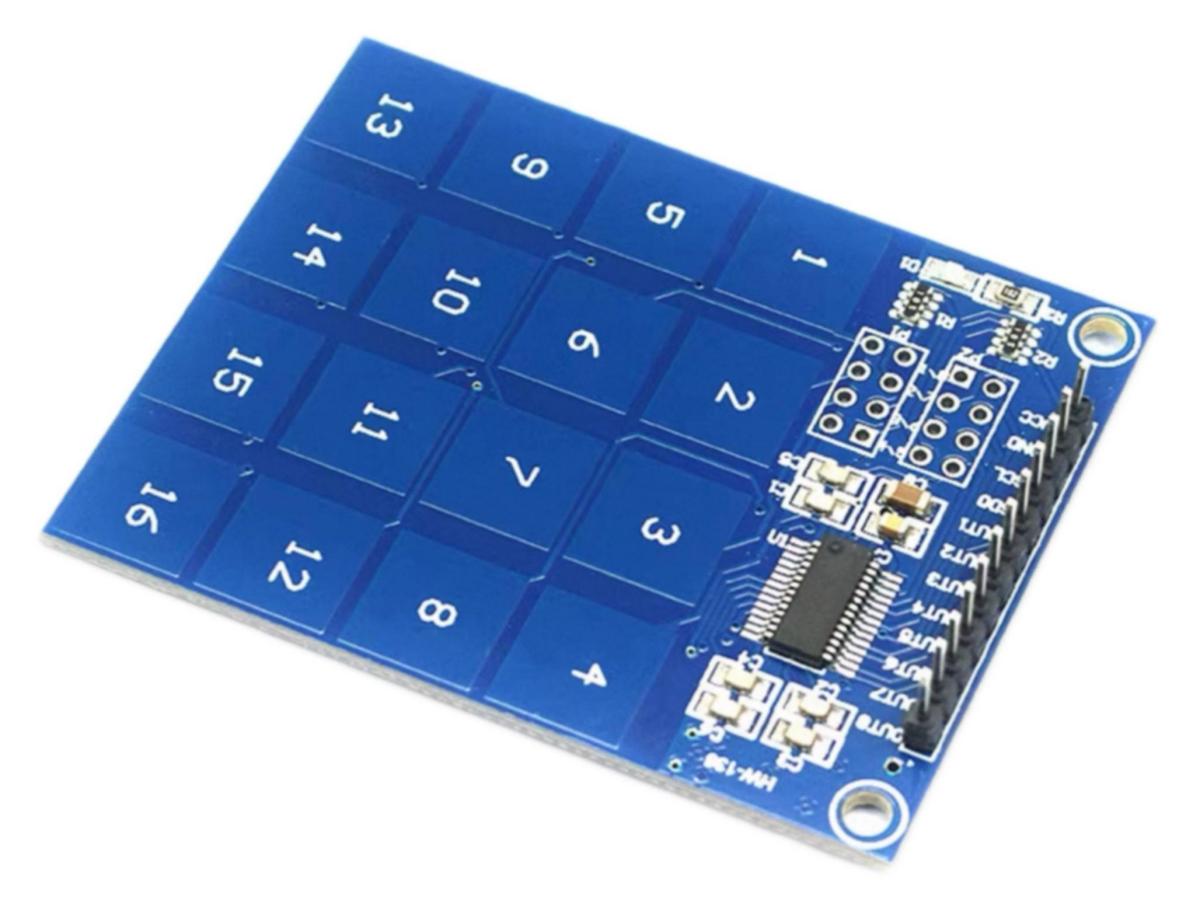
Are you tired of the “click sound” of old-fashioned buttons and the frustration of buttons getting stuck after being pressed? Then meet this ultra-useful TTP229 16-channel touch module! It is also known as the TTP229 module, TTP229 touch sensor, or more professionally, the TTP229 capacitive touch sensor module.
In short, it is a “cutting-edge technology” small module that can trigger a button with a light touch of your finger. It supports up to 16 touch buttons, no pressing required, no springs, no wear and tear, and an ultra-long service life! Whether used for smart home panels, toy controls, or DIY electronic gadgets, it can instantly elevate your project to a higher level while being extremely user-friendly!
What is TTP229 module?
The TTP229 TonTouch™ IC is a touch chip designed based on the capacitive sensing principle. This TTP229 IC integrates a voltage regulator circuit for powering the touch sensor, and its stable touch performance can be applied in various applications. The human-machine touch panel can be connected through non-conductive insulating materials, with the main application being to replace mechanical switches or buttons. This chip can independently support 8 touch keys or 16 touch keys.
TTP229 Working Principle
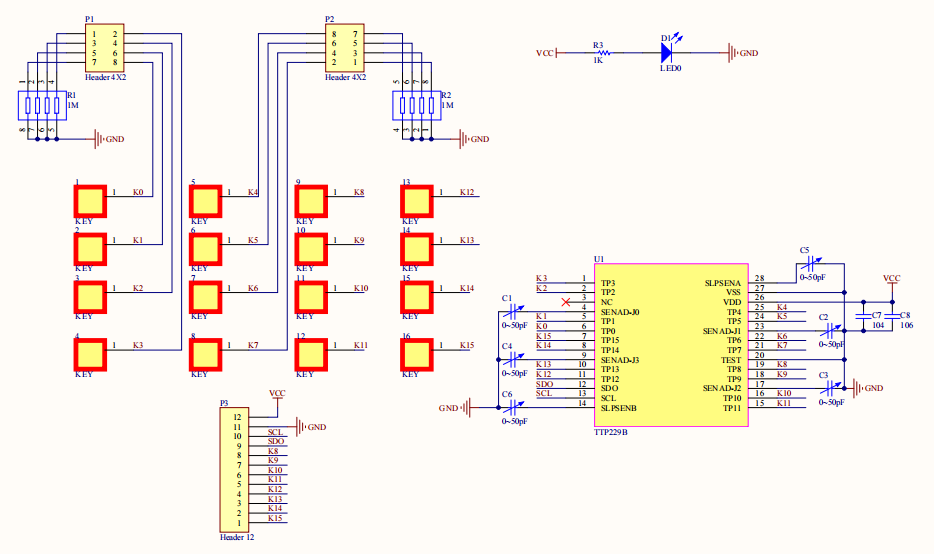
TTP229 Schematic
Each touch key corresponds to a capacitive sensing channel inside the chip. When a finger does not touch the key area, the capacitance of this channel is a stable reference value (usually the parasitic capacitance between the internal sensing electrode of the chip and ground). When a finger touches the key, since the human body is a conductor and carries electric charge, it will introduce additional capacitance (a coupling capacitance formed between the finger and the touch pad), resulting in an increase in the total capacitance of the channel.
The TTP229 internal circuit continuously detects the capacitance change of each channel. Once it detects that the capacitance corresponding to a certain key exceeds the set threshold, the key is considered “pressed”.
TTP229 Circuit Diagram
TTP229 Feature
1. Operating voltage:
2.4V ~ 5.5V (Built-in voltage regulator circuit enabled)
2.0V ~ 5.5V (Built-in voltage regulator circuit disabled)
2. The function of enabling/disabling the built-in voltage regulator circuit can be selected externally.
3. Stand-by current
At 3V, and sleep mode slow sampling rate 8Hz:
=> Typical 2.5 uA for 16 input keys
=> Typical 2.0 uA for 8 input keys
4. Provides to set 8 keys or 16 keys by option
5. Provides to set 8 separate outputs only for 8 direct input keys mode
6. It has two serial output modes, both can use for 8 and 16 keys mode
It includes 2-wire serial mode and I2C communication mode, which are selected by the option.
7. 8 direct output ports support selection of different output types (CMOS/OD/OC with active high/low)
8. 2-wire serial mode allows selection of active high or active low via option
9. Offer multi-key or single-key feature by option
10. Provides two kinds of sampling rate that slow sampling rate 8Hz and fast sampling rate 64Hz at sleep mode
11. Have the maximum key-on time about 80sec by pin option
12. Sensitivity can adjust by the capacitance(1~50pF) outside
13. After power-on have about 0.5 sec stable-time
During the time do not touch the key pad, and all functions are disabled.
14. Auto calibration
The re-calibration period is about 4.0sec, when all keys are not activated for fixed time.
TTP229 Parameter
- Onboard TTP229 capacitive 16-key touch sensing IC
- Onboard power indicator light
- Operating voltage: 2.4V~5.5V
- The TTP229 module can be configured with output mode, key output mode, long output time, and fast/low power consumption selection
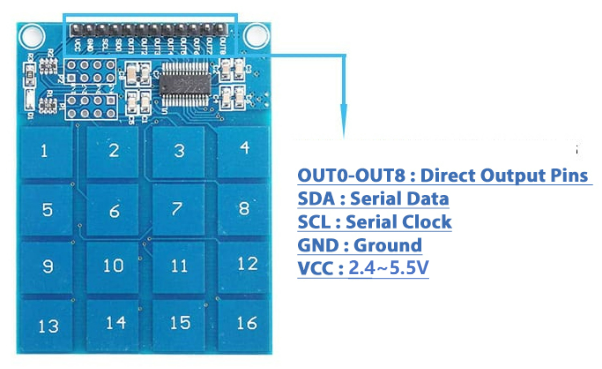
TTP229 Pin Function
TTP229 Arduino Tutorial
TTP229 Pinout
- TTP229 Arduino
VCC ——> 5V
GND ——> GND
SCL ——> 8
SDO ——> 9
- OLED Arduino
VCC ——> 5V
GND ——> GND
SCL ——> A5
SDA ——> A4
TTP229 Code
					#include <Wire.h>
#include <Adafruit_GFX.h>
#include <Adafruit_SSD1306.h>

#define SCREEN_WIDTH 128
#define SCREEN_HEIGHT 64
#define OLED_RESET -1
#define SCREEN_ADDRESS 0x3C

Adafruit_SSD1306 display(SCREEN_WIDTH, SCREEN_HEIGHT, &Wire, OLED_RESET);

#define SCL 8
#define SDO 9
byte Key;
String inputString = "";
float result = 0;
boolean newCalculation = true;

const char keyMap[16] = {
  '1', '2', '3', 'C',    // Clear-->'C'
  '4', '5', '6', '/',
  '7', '8', '9', '*',
  '0', '=', '+', '-'
};

byte Read_TTP229_Keypad(void)
{
  byte Num;
  byte Key_State = 0;
  for(Num = 1; Num <= 16; Num++)
  {
    digitalWrite(SCL, LOW);
    delayMicroseconds(10);
    if (!digitalRead(SDO))
      Key_State = Num;
    digitalWrite(SCL, HIGH);
    delayMicroseconds(10);
  }
  return Key_State;
}

void displayCalculator() {
  display.clearDisplay();
  display.setTextColor(SSD1306_WHITE);

  // Show the complete formula (in large font)
  display.setTextSize(2);
  display.setCursor(0, 5);

  if (inputString.length() > 0) {
    display.print(inputString);
  } else {
    display.print("0");
  }

  // Display the equal sign and the result
  if (!newCalculation || result != 0) {
    display.setCursor(0, 30);
    display.setTextSize(2);
    display.print("= ");

    if (result == floor(result)) {
      display.print((long)result);
    } else {
      display.print(result, 2);
    }
  }

  display.display();
}

void calculateResult() {
  if (inputString.length() == 0) return;

  float num1 = 0, num2 = 0;
  char op = ' ';
  int operatorPos = -1;

  // Find the position of the operator
  for (int i = inputString.length()-1; i >= 0; i--) {
    if (inputString[i] == '+' || inputString[i] == '-' ||
        inputString[i] == '*' || inputString[i] == '/') {
      operatorPos = i;
      op = inputString[i];
      break;
    }
  }

  if (operatorPos == -1) {
    result = inputString.toFloat();
    return;
  }

  // Extract operand
  String str1 = inputString.substring(0, operatorPos);
  String str2 = inputString.substring(operatorPos + 1);

  num1 = str1.toFloat();
  num2 = str2.toFloat();

  // Perform the operation
  switch(op) {
    case '+':
      result = num1 + num2;
      break;
    case '-':
      result = num1 - num2;
      break;
    case '*':
      result = num1 * num2;
      break;
    case '/':
      if (num2 != 0) {
        result = num1 / num2;
      } else {
        inputString = "Error";
        result = 0;
        return;
      }
      break;
  }

  // Maintain an appropriate level of precision
  if (result != floor(result)) {
    result = round(result * 100) / 100;
  }
}

void setup()
{
  Serial.begin(9600);

  if(!display.begin(SSD1306_SWITCHCAPVCC, SCREEN_ADDRESS)) {
    Serial.println(F("SSD1306 allocation failed"));
    for(;;);
  }

  display.clearDisplay();
  display.setTextSize(1);
  display.setTextColor(SSD1306_WHITE);
  display.setCursor(0,0);
  display.println("Calc Ready");
  display.display();
  delay(1500);

  pinMode(SCL, OUTPUT);
  pinMode(SDO, INPUT);
  digitalWrite(SCL, HIGH);
}

void loop()
{
  Key = Read_TTP229_Keypad();

  if (Key)
  {
    char pressedKey = keyMap[Key-1];  // Key starts from 1, and the array index starts from 0.

    Serial.print("Key: ");
    Serial.println(pressedKey);

    switch(pressedKey) {
      case 'C':
        // Clear -> Clear everything
        inputString = "";
        result = 0;
        newCalculation = true;
        Serial.println("Cleared");
        break;

      case '=':
        if (inputString.length() > 0) {
          calculateResult();
          newCalculation = false;
        }
        break;

      case '+':
      case '-':
      case '*':
      case '/':
        if (inputString.length() > 0) {
          char lastChar = inputString.charAt(inputString.length()-1);
          if (isdigit(lastChar) || lastChar == '.') {
            inputString += pressedKey;
          } else if (ispunct(lastChar)) {
            // Replace the last operator
            inputString.setCharAt(inputString.length()-1, pressedKey);
          }
        }
        break;

      case '.':
        if (inputString.length() > 0) {
          // Check if there is a decimal point in the current number field
          int startPos = inputString.length() - 1;
          while (startPos >= 0 && (isdigit(inputString.charAt(startPos)) || inputString.charAt(startPos) == '.')) {
            startPos--;
          }

          // After locating the starting position of the current number field, check if there is already a decimal point.
          String currentSegment = inputString.substring(startPos + 1);
          if (currentSegment.indexOf('.') == -1) {
            // If there is no decimal point and the last character is an operator, add 0 first.
            char lastChar = inputString.charAt(inputString.length()-1);
            if (ispunct(lastChar)) {
              inputString += '0';
            }
            inputString += pressedKey;
          }
        } else {
          inputString = "0.";
        }
        break;

      default:
        // number key
        if (isdigit(pressedKey)) {
          if (newCalculation) {
            inputString = pressedKey;
            newCalculation = false;
          } else {
            inputString += pressedKey;
          }
        }
        break;
    }

    // Limit the input length to prevent overflow.
    if (inputString.length() > 12) {
      inputString = inputString.substring(inputString.length() - 12);
    }

    displayCalculator();
    delay(200);
  }

  delay(50);
}
TTP229 Effect Demonstration
TTP229 Application Scenario
- Used for light control, curtain control, air conditioner control, music playback, scene mode switching, etc.
- Used for industrial instruments and meters, PLC panels, numerical control equipment, power switch control, etc.
- Operation panels of early education machines, music boxes, smart toys, storytellers, and other devices.
- Electronic clocks, music players, electronic code locks, interactive devices, display equipment, etc.
Relative Information
Purchase Link
FAQ
Why does the TTP229 module sometimes have unresponsive keys? How to troubleshoot?
If the buttons of your TTP229 16-channel touch module are unresponsive or insensitive, it may be caused by the following reasons, and you can troubleshoot step by step:
① Incorrect mode setting (wrong GPIO/I2C mode)
② Unstable power supply or incorrect voltage, ensure the module’s supply voltage is between 2.4V and 5.5V
③ Incorrect I2C address/wiring error, check if SDA and SCL are connected correctly and if the I2C address matches
Does the TTP229 module have pull-up resistors? Is an external pull-up required for I2C?
Most TTP229 modules have built-in pull-up resistors on the SDA and SCL lines, so if you are using a module from a regular manufacturer, an external pull-up resistor is usually not required.