How to Reset the BMS?
Have you ever had this experience: Your electric vehicle is fairly new, but you find it runs out of power quickly even after a full charge? You might think you’ve been tricked by the seller, assuming they used poor-quality or even aged batteries. While this possibility can’t be ruled out, don’t get upset just yet—try calibrating and resetting the BMS first. It might just solve your problem. Sometimes, the issue isn’t with the battery itself, but with the BMS display. That’s normal; the BMS is an electronic device, and not all of them are perfect.
If you’ve encountered any of the following situations, you can try the method I’m about to share to“wake up”your BMS:
- Reduced driving range;
- The display shows less than 100% battery after a full charge;
- Longer charging time than usual;
First, you need to know this: The BMS can only accurately measure information like State of Health (SOH) when the battery is stable and undergoes a full charging cycle. Otherwise, the data may deviate from the actual values.
The core of how the BMS assesses battery health is by reading parameters like voltage and current—but these parameters are only accurate when the battery is at rest. After driving or charging, the battery has residual chemical reactions and temperature fluctuations inside, so the voltage and current at this point don’t reflect its real state. After being left idle for a few hours, the internal chemical state, temperature, and voltage of each cell will stabilize. Only then can the BMS read relatively accurate parameters.
Do you often charge your vehicle right after parking it? When you just stop the car, the battery is still in an unstable state from driving (e.g., temperature hasn’t dropped, cell voltages are inconsistent). Charging at this time means the BMS can’t get stable parameters during the low State of Charge (SoC) phase—it can only check when the battery is fully charged or nearly full. If you rely solely on “full-charge end” data for a long time, the BMS calibration value will gradually deviate from the battery’s actual health level.
Another scenario is that the battery always operates in the “mid-charging range” and never reaches low SoC (below 20%) or high SoC (above 80%). Without data covering the full “low-medium-high” SoC range, the BMS can’t fully calculate battery capacity degradation, so the calibration value will naturally be inaccurate. Of course, solving this doesn’t mean you should overcharge the battery to full or drain it completely to 0%—overcharging or deep discharging is harmful to your battery. Moderation is key.
In short, use the battery until its remaining power is in the single digits, then fully charge it when it’s stable. Doing this charging cycle regularly counts as a successful BMS reset. No complex professional knowledge is needed—start with this simple trick to see if it works.
If it still doesn’t work, try the methods below
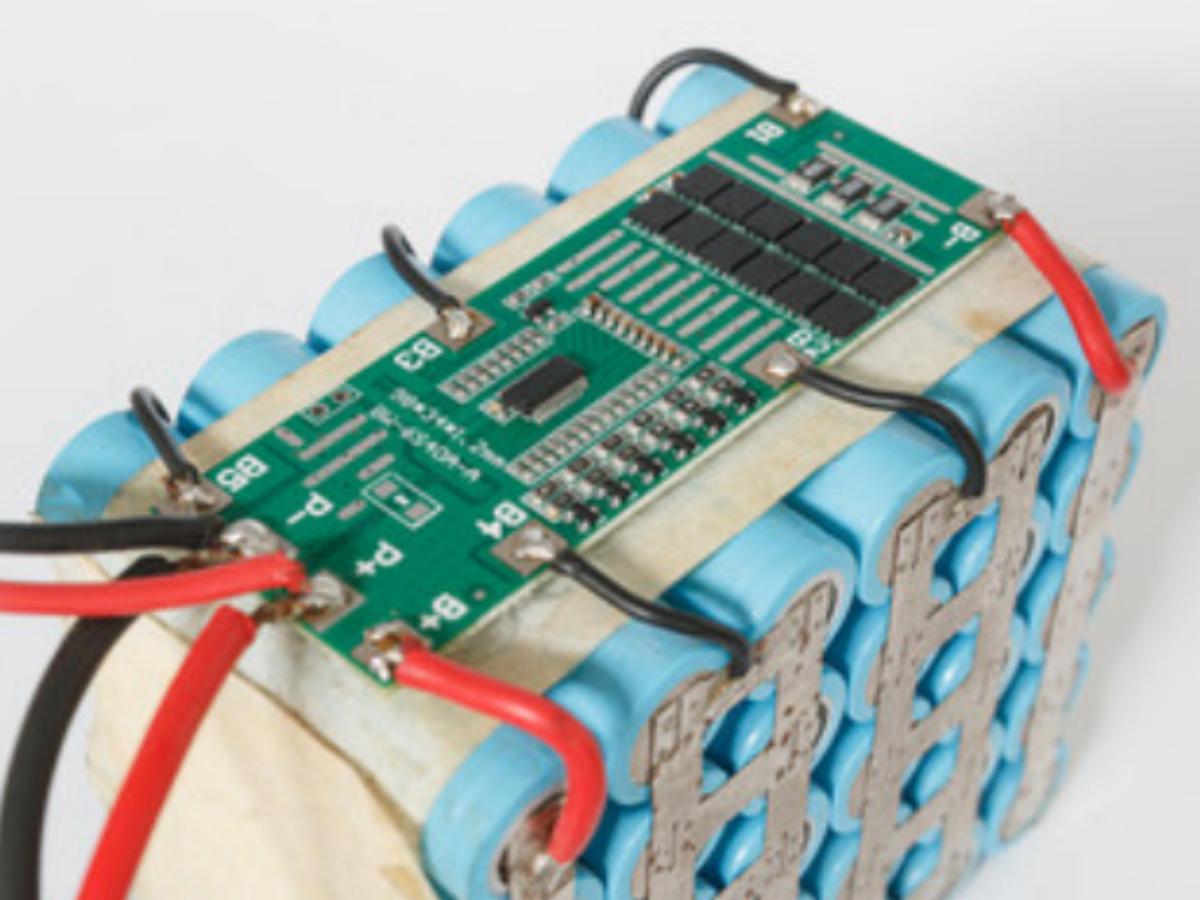
This works best for small, simple devices—avoid attempting this on vehicles like cars. It refreshes sensor readings and clears minor errors without changing system configurations. First, turn off the battery-powered device and disconnect the battery from the BMS; leave the system disconnected for 10–30 minutes to let any residual power drain. Next, recheck all connections to ensure there are no loose or corroded wires, and you can try shorting the BMS (connect P- to B-) to reset it. Finally, reconnect the BMS connector to the battery, turn on the system, and check if the battery has returned to normal.
This method is usually used to delete error log data, reset battery status, resync charging status, or adjust battery calibration. You’ll need to connect the BMS to a computer or smartphone via Bluetooth, then open the manufacturer’s official app (designed for monitoring or resetting the BMS). Select the option that matches the BMS issue—such as clearing errors, resetting SoC, resetting the system, or restoring factory settings—wait for the reset to finish, then restart the system and check if all parameters are read correctly.
This is generally for vehicles; its purpose is to clear DTC (Diagnostic Trouble Code) errors on the battery module, reset the status of a replaced battery, and sync the new battery to the vehicle’s system. Plug the OBD2 scanner into the vehicle’s OBD port, then open the vehicle diagnostic app and connect it. Access the battery module (Battery ECU), select options like resetting battery history, clearing DTCs, or reinitializing the BMS, and follow the on-screen instructions to proceed. Once done, restart the vehicle and check the status of SoC and error codes on the EV dashboard.
For more complex cases, it’s better to consult the manufacturer directly—leaving professional tasks to experts is always more reliable.
What are the common BMS faults?
Can’t tell the difference between a battery fault and a BMS fault? No worries—next, I’ll go through some areas where the BMS might have issues, to help you make a clear call.
First, monitoring voltage, current, and temperature all relies on sensors. If these sensors act up, it will undoubtedly lead to inaccurate monitoring. The BMS could then miss dangerous situations and even cause accidents.
Second, you’ll need to be careful if your BMS responds slowly. It might fail to shut down the battery in time when overheating or short-circuiting occurs, and this is a very dangerous problem.
Third, there may be times when your battery is actually in perfect condition, but the BMS misjudges it and cuts off the power. This is pretty frustrating too—your device is working just fine, then suddenly shuts down.
Beyond these, you can also judge by observing the BMS status indicator light, or using the online monitoring software paired with the BMS product. Additionally, if your battery heats up abnormally, won’t charge, or loses power quickly, don’t think replacing it with a new one will solve all the problems. If the BMS is faulty, your new battery probably won’t last long either. So it’s crucial to make sure the BMS functions properly.
How to Test the Internal Circuit of a BMS?
The previous section mentioned that voltage, current, and temperature sensors may malfunction—so how can we test them?
Basic Voltage Testing: Use a multimeter to measure the total voltage of the battery pack and the voltage of individual cells, then check if the voltage of each cell is balanced. If you find that the voltage of a certain cell is abnormally high or low, it may indicate a fault in the BMS voltage sampling circuit.
Charge-Discharge Testing: Simulate the normal charge-discharge process and observe whether the BMS triggers a protection mechanism when overvoltage or overcurrent occurs.
Temperature Sensing Verification: Use a thermistor to simulate a high-temperature environment and check if the BMS disconnects the charge-discharge circuit.
Will a faulty BMS affect other BMS units?
Generally, it won’t—but there may be system-level impacts. If a faulty battery continues to output abnormal current, it could cause voltage fluctuations in the entire battery pack, which indirectly triggers the overcurrent protection of other batteries. For example, if a battery discharges at a continuous high current due to BMS failure, it may lower the total voltage, making the BMS of other batteries mistakenly identify a system over-discharge and disconnect.
Will BMS Faults Affect the Charging/Inverter System?
Charging Interruption: The BMS’s overvoltage protection will cut off the charging circuit. If your BMS fails to detect the full-charge state, it may cause the charger to keep supplying power, leading to battery overheating or even thermal runaway. In this case, you need to manually disconnect the charger and troubleshoot the BMS.
Inverter Restriction: The BMS’s overcurrent protection will limit the output power of the inverter. For example, when the load current exceeds 100A, the BMS will disconnect the load and shut down the inverter. If the BMS misjudges the current, it may trigger this protection frequently.
How Does High-Voltage Circuit Breaker on BMS Work?
Actually, the high-voltage circuit breaker on a BMS is designed to protect the battery from overvoltage—it only activates the protection when the voltage of a single cell in the battery spikes too high.
There’s a key feature after activation: charging will be completely cut off. After all, continuing to charge would exceed the cell’s safety specifications and easily cause problems. However, discharging is not affected at all—you can still use electrical appliances (such as RV lights and small devices) without sudden power cuts.
If you find that the battery can discharge normally but just won’t charge, it’s most likely that this protection has been triggered. Don’t panic in this situation: first discharge the battery slightly until the voltage of the single cell drops back to the normal range, then try charging again. Additionally, choosing the right charger is important in daily use, as a suitable charger can reduce the chance of this situation happening.
Related Products