TTP223 is a powerful touch-sensing chip, belonging to the category of small technologies that make our lives more convenient. It is applied in many fields, such as some smart household appliances and various electronic products, where touch buttons can be found. For instance, the common touch-type desk lamps in our homes turn on when touched and turn off when touched again. The credit for this lies with TTP223.
What is TTP223 Touch Sensor?
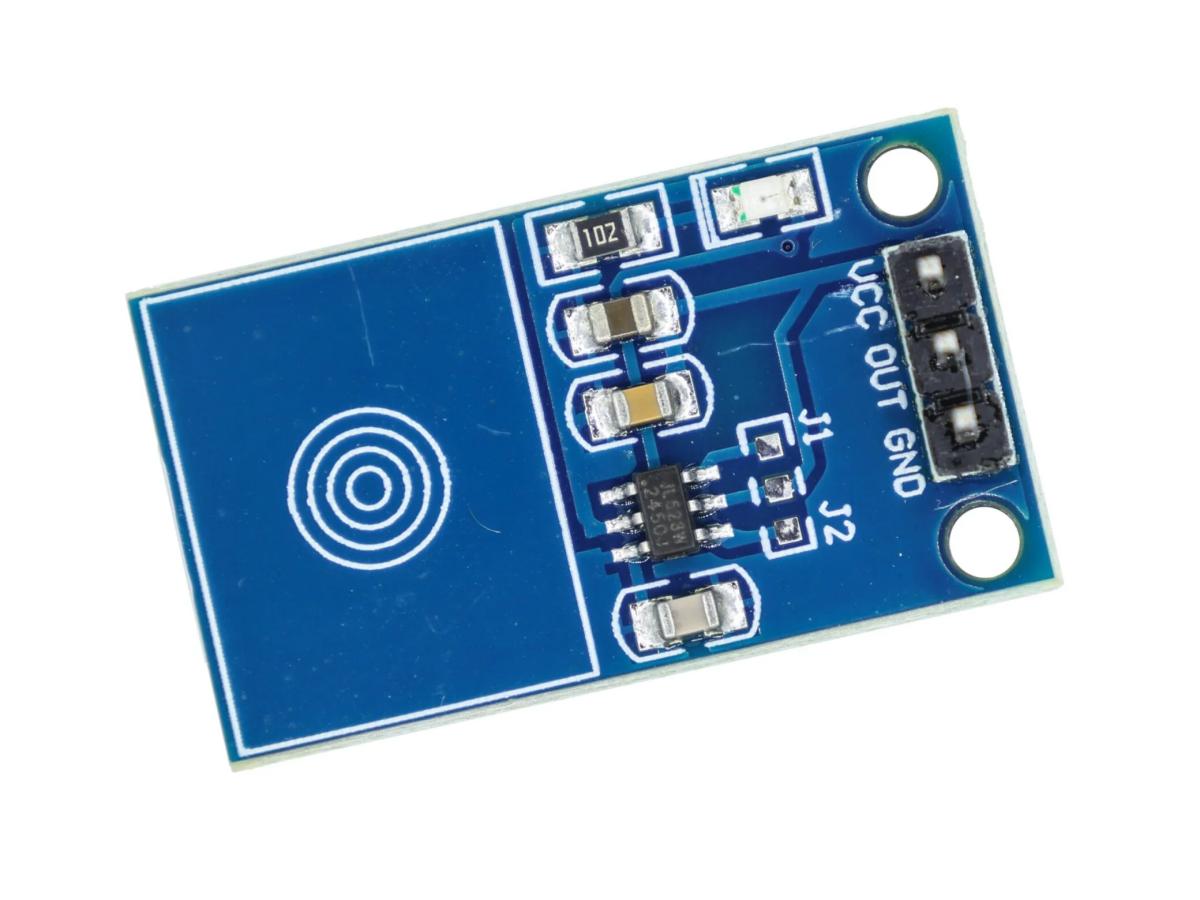
The TTP223 capacitive touch sensor module is a capacitive point-type touch switch module based on the touch detection IC (TTP223). In normal condition, this module outputs a low level, which is a low-power mode. When a finger touches the corresponding position, the module will output a high level. The module can be installed on non-metallic materials such as plastic and glass surfaces. In addition, a thin sheet of paper (non-metallic) is placed on the surface of the module. As long as the touching position is correct, it can be made into a button that is hidden in places like walls or tabletops. This module can help you avoid the trouble of regular pressing-type buttons.
Working Principle
- TTP223 touch sensor circuit diagram
TTP223 mainly senses external signals by detecting the capacitance changes that occur when the human body touches the switch. When our fingers approach the touch area, a small capacitance is formed between the human body and the touch electrodes. Although this capacitance change is very small, the TTP223 can sensitively detect it.
After the signal enters the chip, it undergoes a series of processing. There are specialized circuit structures in the chip to handle these signals. For example, some key components will amplify and convert the detected capacitance change signal. Parameters such as current and voltage will change accordingly during this process. When the capacitance change is detected, it causes a slight fluctuation in the current in the circuit, and then through some circuit designs, this current change is converted into a voltage change, and then through a series of complex circuit processing, this change signal is transformed into a digital signal, so that the chip can recognize and determine whether someone has touched.
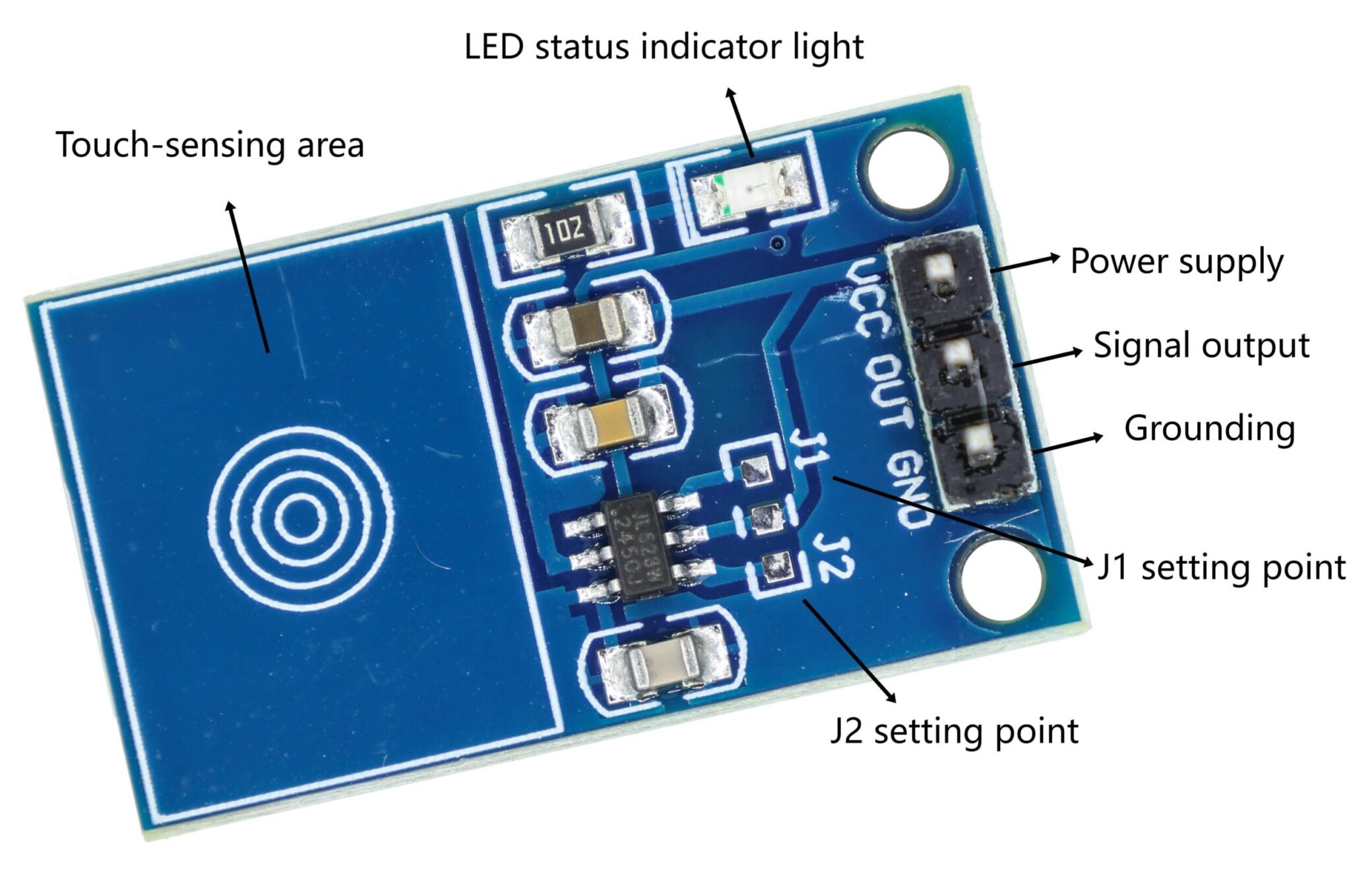
TTP223 Touch Sensor Module Pin Function
Pin | Definition |
VCC | Positive pole |
GND | Power ground |
OUT | Digital output |
- When the working voltage is between 2.5V and 5.5V, it defaults to the jog mode. When touched, it outputs a high level.
- Different working modes can be set through J1 and J2. It has installation holes and an LED status indicator (Effective when the output is at a high level).
Touch Mode | Level Output | J2 | J1 |
Jog mode | high level | No welding | No welding |
low level | weld | No welding |
Automatic Lock Mode | high level | No welding | weld |
low level | weld | weld |
Note: J2 sets the output level, and J1 sets the touch mode.
Parameters
Model | TTP223 Touch Module |
Working voltage | DC 2.0V-5V |
Trigger mode | Outputs a high level after the finger is touched. |
Size | 27.6mm * 16.0mm |
Level output | High/Low level |
Indicator light status | With a switch indicator light (the light goes off when there is no touch, and it lights up when there is touch) |
Module interface | 2.54mm pin header |
Module Feature
- Operating voltage: 2.0V – 5.5V.
- Built-in status indicator light.
- The module has an automatic calibration function. When no key is touched, the system will re-calibrate. The re-calibration cycle is approximately 4.0 seconds.
- After power-on, there is a stable time of about 0.5 seconds required. During this period, do not touch the keys. At this time, all functions are prohibited.
- The module interface is a standard 2.54mm pin header for input and output connection. The connection via DuPont wires is very convenient.
- The PCB board has two fixed bolt holes, which can be fixed with screws.
TTP223 Touch Sensor Arduino
TTP223 Pinout
VCC ——> 3.3V
GND ——> GND
OUT ——> D2
Sample Code
Effect Demonstration
Application Scenario
This module is a wide range of electronic consumer products. It replaces traditional buttons, microcomputer learning, electronic competitions, product development, graduation design, and home industrial control applications. It can be connected with relay modules to form touch relay control switches, or it can be connected with buzzer modules to form touch alarm modules.
Relative Information
TTP223 Purchase Link
FAQ
1.What happens when a capacitive touch sensor is touched?
When the capacitive touch sensor is touched, the finger (a conductor) will alter the capacitance value between the electrodes and the ground, causing changes in the frequency or current amplitude of the internal oscillation circuit of the sensor. After the chip detects this change, it converts it into a digital signal and triggers an output response (such as a high level, an LED turning on, or a state flip). This entire process does not require physical contact; it achieves control through changes in the electric field and has the characteristics of anti-interference and long lifespan.
2. How long do touch sensors last?
Capacitive touch sensors have no mechanical structure, and their theoretical lifespan can exceed 500,000 to 1,000,000 operations, far surpassing that of traditional mechanical keys (about 100,000 times). The actual lifespan is affected by circuit design, environmental temperature and humidity, and electrostatic protection. Industrial-grade products can operate continuously for 5 to 10 years with reasonable maintenance, and they do not require physical contact, completely eliminating the problem of mechanical wear.
3. How to clean a touch sensor?
When cleaning capacitive touch sensors, after power off, gently wipe the surface with a slightly damp, lint-free cloth (such as a spectacle cloth). For stubborn stains, apply a small amount of isopropyl alcohol (avoid alcohol content > 70%). Do not use abrasive materials or high-pressure water jets. Pay attention to keeping the surface dry to prevent liquid from penetrating the circuit. Static electricity may interfere with sensitivity. After cleaning, let it stand for 1 minute before powering on. For industrial environments, it is recommended to use compressed air for regular dust removal.



.jpg)